
Click on a screenshot to view a larger image.
Shopper Tutorials
Shopper Presentation
View this Shopper Presentation
Learn how Feebee can help your family now.
Welcome Shopper Learn about Feebee
How Feebee will help connect you to the World
and Create a Better Future.
WATCH THIS PRESENTATION!
HOVER HERE AND SELECT THE ARROWS TO START
HOVER HERE AND SELECT THE ARROWS TO START

The World is Big Remove the language and Culture Barriers
Feebee allows you to connect with any business around the world from local to exotic.
Every business is in your language and English.
All businesses use a similar style making search results easy to understand.
As a shopper you deserve to be able to find any business no matter their size or location.
Every business is equal on Feebee.
A Central Directory that connects us all to make the world a better place!

The Internet is the Future for Us and our Children
Feebee simplifies the Internet.
It is a part of every phone, tablet and computer.
Kids are growing up with the internet.
Feebee allows you to show the world to your kids.
Interacting with businesses in different cultures and finding jobs anywhere in the world opens up the big world and makes it a little smaller.
Our future will be bright if every child better understands the world.

Feel Better by Helping Each Other
Soon our Charity Vision will be here.
People will create charity projects and all families can decide what to support as a family.
Give even small amounts earned by using Feebee to any project worldwide.
Watch your project through completion and know you helped make the world better.
Even you could make a project soon to help in your community. Get Ready!

Commerce is the International Language of Understanding
Business drives economies and governments.
The more we learn about businesses around the world the better we understand their culture.
We are part of a worldwide economy, Feebee makes the world more accessible to all.
Support your local businesses, support businesses around the world.
Access Job postings where the jobs are, the world is full of opportunities.
Happy Communities =Happy Countries =Happy World.

Search the World for Businesses, Deals and Jobs
Use the search boxes above and select one of three search types:
Business Only
-
Deal Only
-
Jobs only results
Soon you will be able to search for Charity Projects and use Feebee Charity Dollars.
Add businesses to your Favorites to stay up to date on deals whether they are local or on the other side of the world.

Enter Contests
Win Prizes and Money WorldWide
Every business can create a contest and offer a prize.
Contests are a way for businesses to create brand awareness and give back to shoppers.
Enter as many contests as you like and be sure to share them with your friends to earn more tickets.
You earn one ticket for entering and another ticket for every friend that enters using your invitation.
The Feebee system will automatically draw and notify the Winners!

The Account Panel on the left will guide you.
Select Account Panel on the left to get back to this page.
Open the tabs under Manage your Shopping to learn more.
Check out the Training button for help.
The About Us explains more about Feebee Corporate.
Check your favorites above to see great partner companies and deals.
Please remember to add your Business today and let everyone find you!

We Apologize for Errors in Feebee
We are growing around the world.
We have zero debt and a low overhead which allows us to concentrate on our vision of making the world a better place and not worry about paying off bills.
We also have limited customer support so please check Training and FAQs for help.
Help us by sharing contests from businesses with your friends and family worldwide.
If we are not in your area yet, just ask one of your local businesses to join and we will be!
Thank you from the Feebee Team.
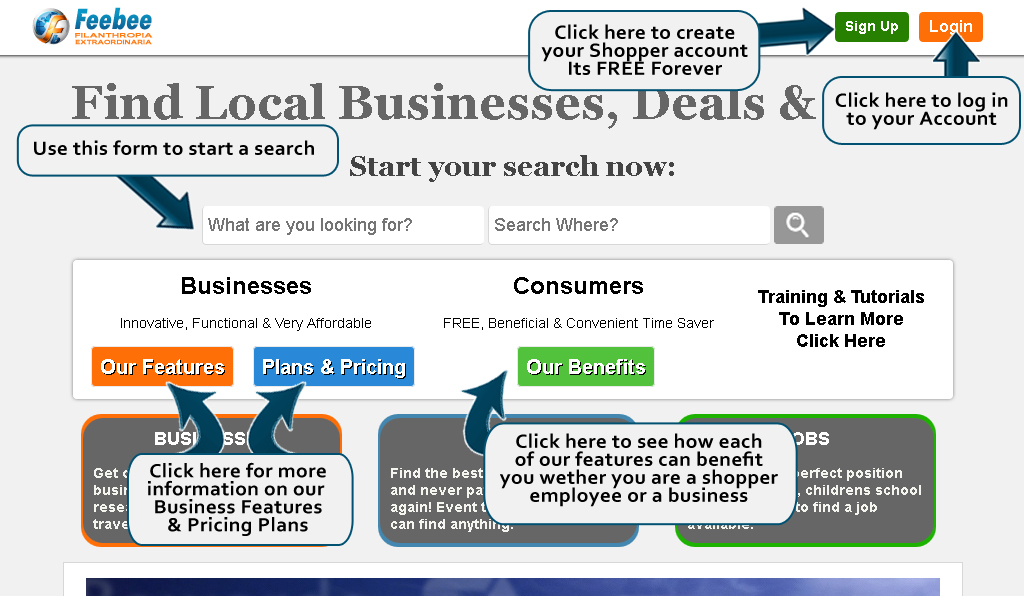
Feebee's Home Landing Page
When you first visit Feebee, you'll be directed to our Landing page. This page is to welcome new members to Feebee and provide them with information that will help them guide them in their Account decisions. On the top of this page you will see our Search Bar. To the right of the Search Bar is the log in button.
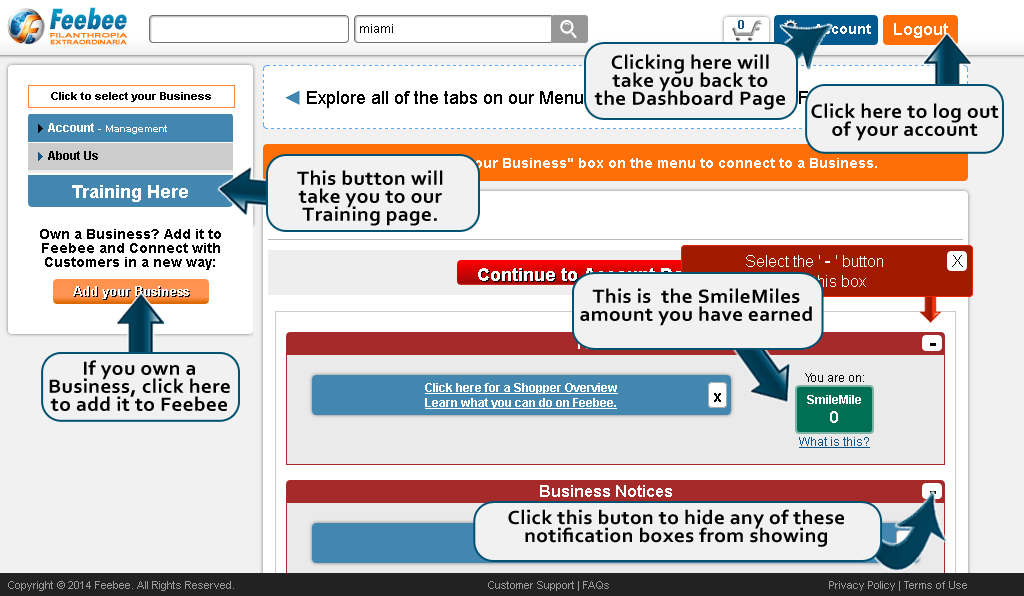
Dashboard Page
When you log into Feebee, you'll be directed to your Dashboard Page. This page will show you any important information as well as provide you with quick links to resolve any pending tasks there may be. The menu on the left will allow you to access the many features of Feebee.
To get to this page, go to your Account Panel. It is the first page in the Account Panel. You can also click on the "Dashboard" button on the top of the menu in your Account Panel.
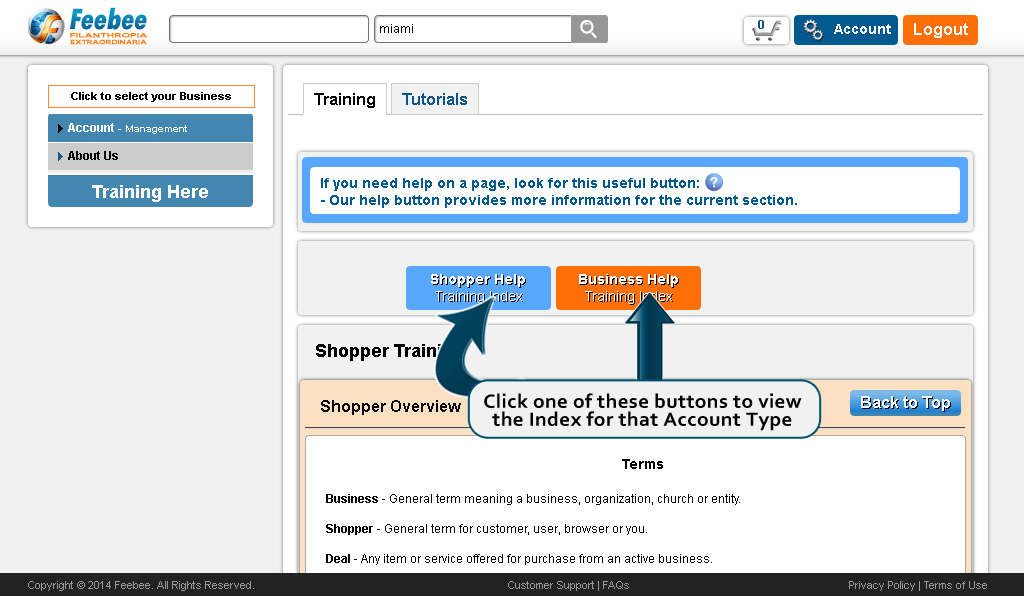
Training Page
The training page is a glossary outlining all of our rules and regulations as well as explaining Feebee's features in a easy to navigate page. Use the Search Index to jump to a specific area.
To get to this page, go to your Account Panel and then click on the "Training Here" button at the bottom of the menu on the left.
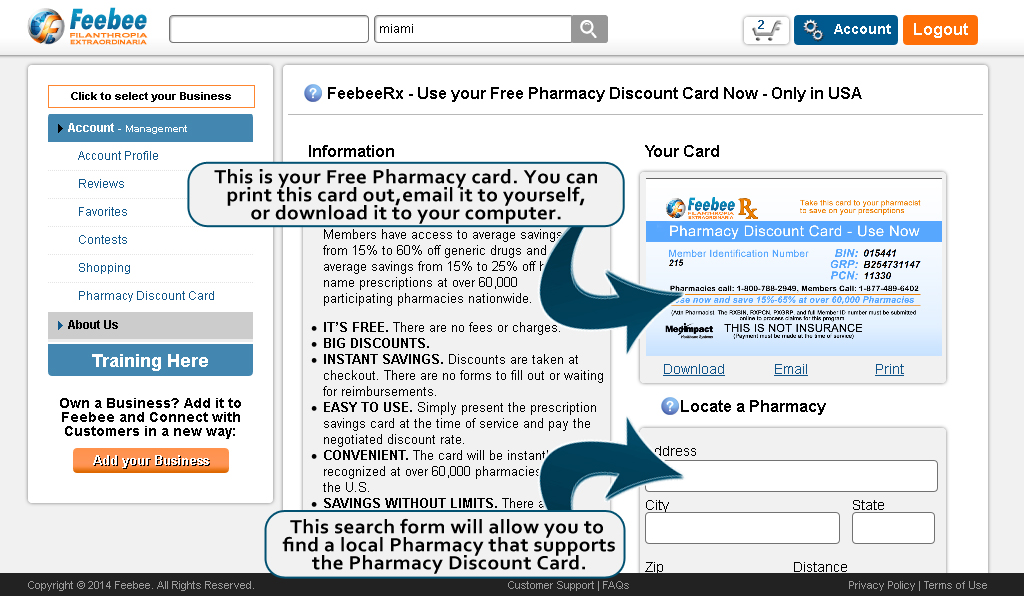
Discount Pharmacy Card Page
The Discount Pharmacy Card is a free service provided to you. The card will help you save on medication and it can be used in many Pharmacies. You can find a Pharmacy close to you by using the Search Form on this page.
To get to this page, go to your Account Panel and then click on the "Manage your Shopping" tab on the left menu and click on the "Pharmacy Discount Card" link.
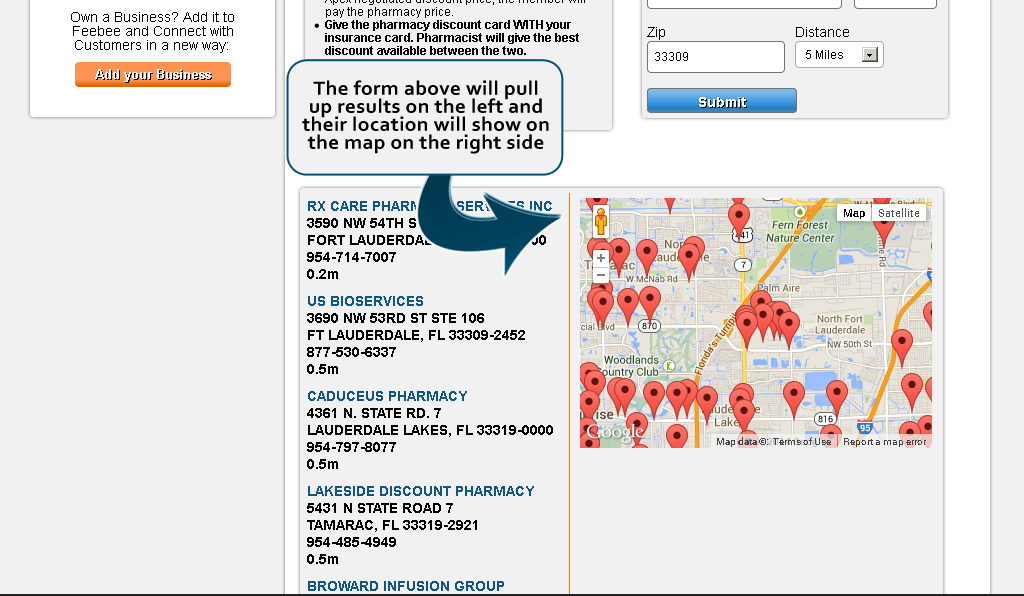
Business Search Results Page
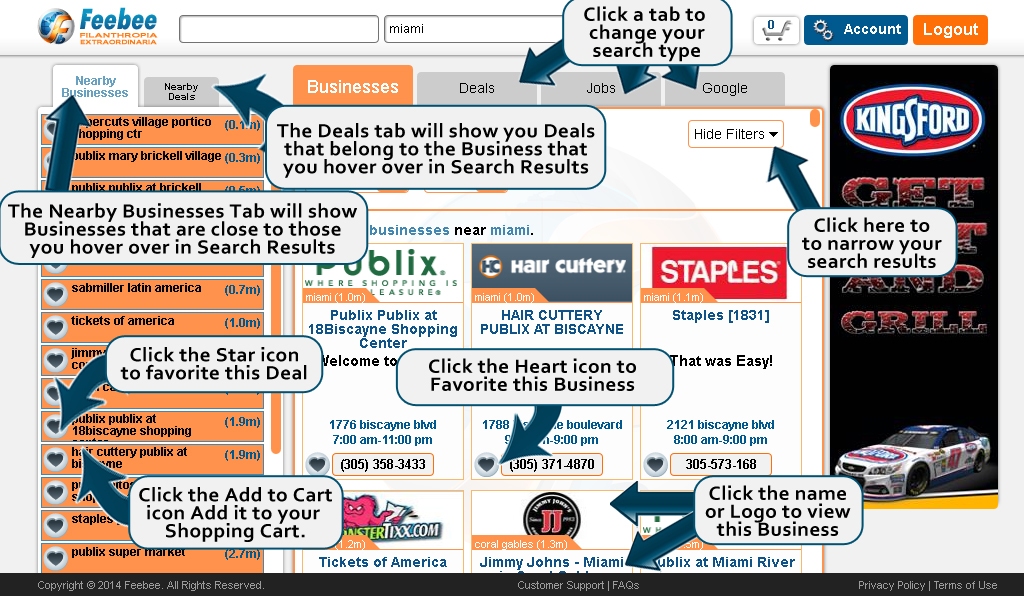
This page will list Businesses depending on the criteria you put in the Search Box at the top of the page. You can Favorite a Business by clicking on its Heart icon. You can also view the Business Details by clicking on the Logo or the Business name. The nearby Businesses tab will show Businesses that are close to those Businesses that you hover over. The Deals tab will show Deals that are close to the Business you hover over.
To get to this page, use the Search Box at the top of Feebee to search for Businesses.
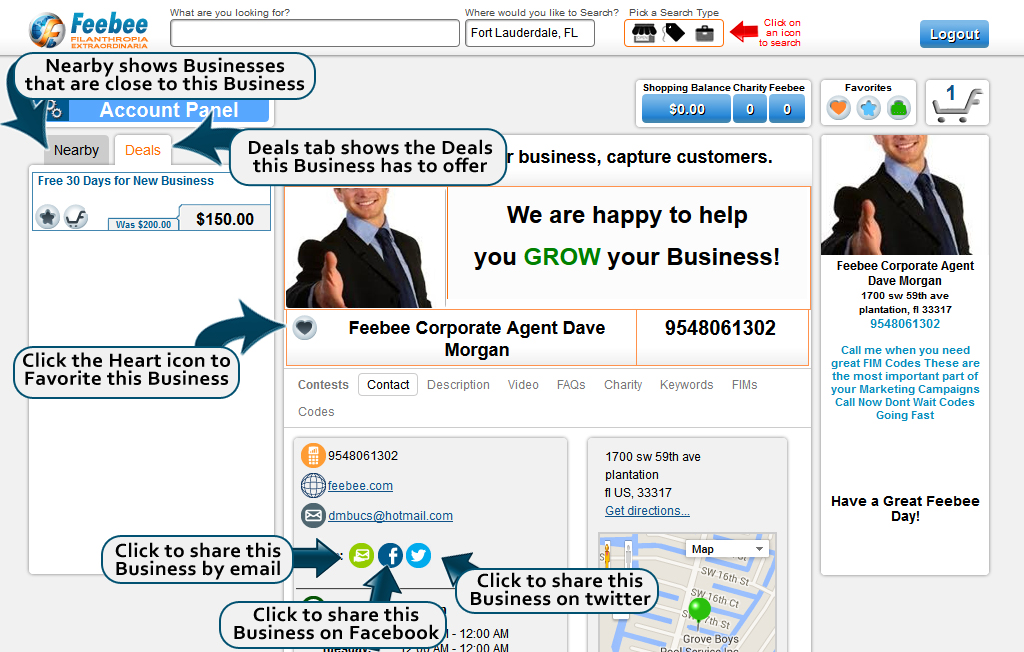
Business Details Page
This page lists all of the information for the Business. The tabs in the middle under the Business name will let you view different information about this Business.
To get to this page, use the Search Box at the top of Feebee to search for Businesses, then click on a Business Logo or it's Name.
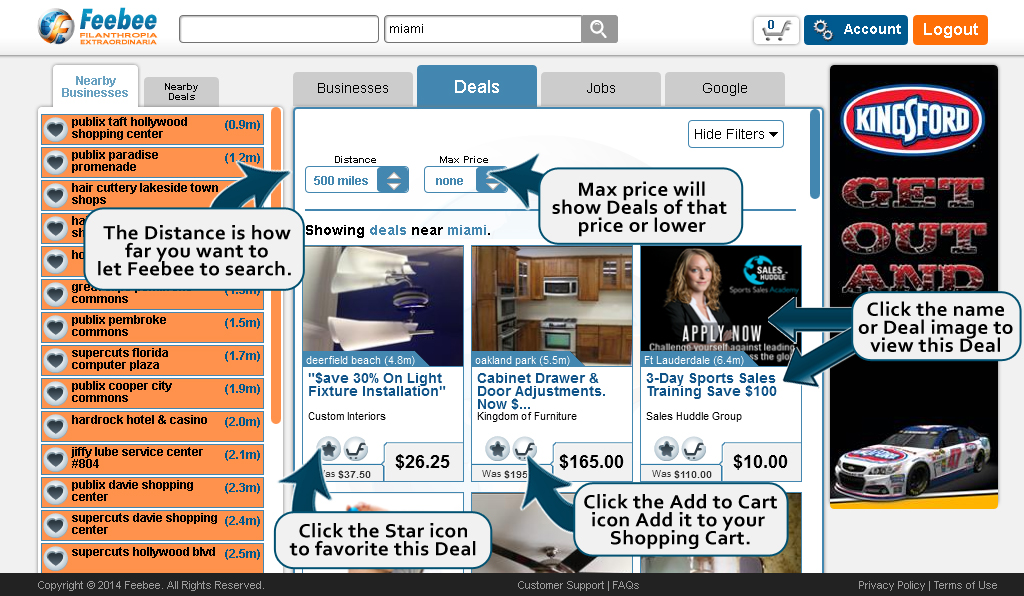
Deal Search Results Page
This page will list Deals depending on the criteria you put in the Search Box at the top of the page. You can Favorite a Deal by clicking on its Star icon. You can also view the Deal Details by clicking on the Image or the Deal name. The nearby Businesses tab will show Businesses that are close to those Deals that you hover over. The Deals tab will show Deals that are close to the Deal you hover over.
To get to this page, use the Search Box at the top of Feebee to search for Deals.
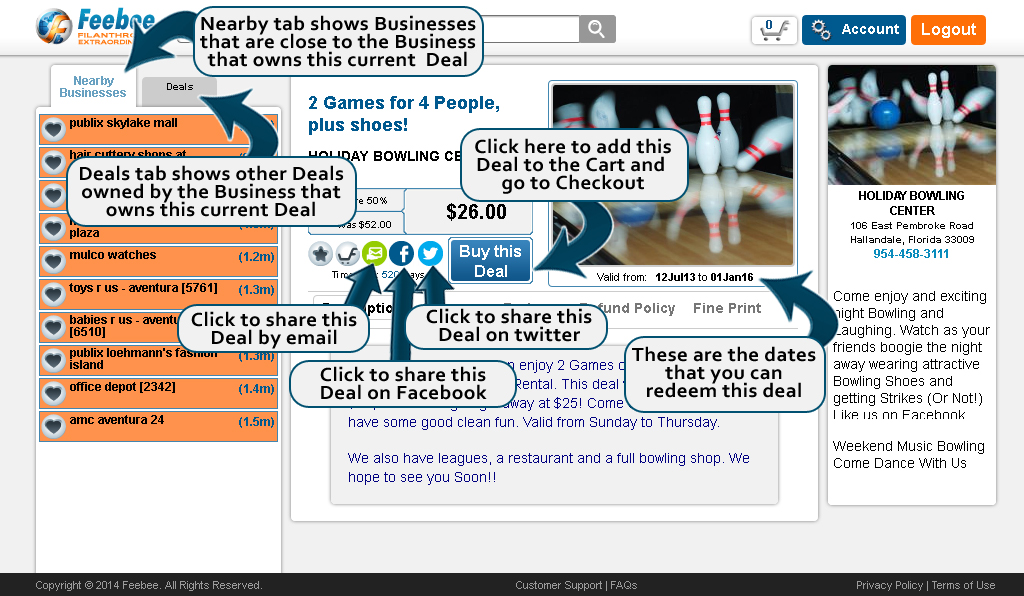
Deal Details Page
This page lists all of the information for the Deal. The tabs in the middle under the Deal image will let you view different information about this Business.
To get to this page, use the Search Box at the top of Feebee to search for Deals, then click on a Deal Image or it's Name.
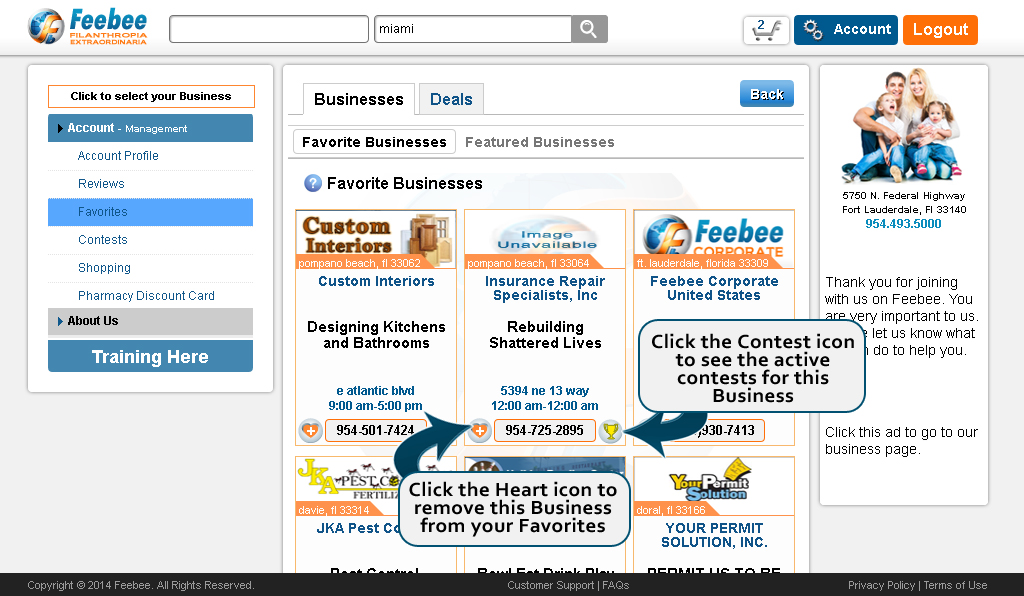
Favorite Businesses Page
This page lists all of the Business that you have Favorited. You can remove them at any time by clicking on the Heart icon.
To get to this page, go to your Account Panel and then click on the "Manage your Shopping" tab on the left menu and then click on the "Favorite Businesses" link.
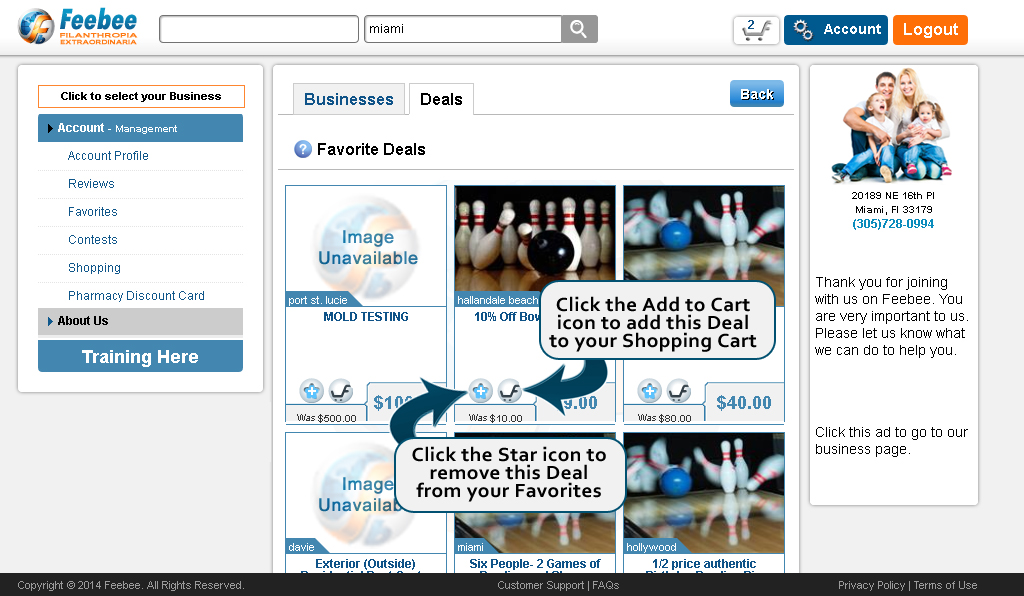
Favorite Deals Page
This page lists all of the Deal that you have Favorited. You can remove them at any time by clicking on the Star icon.
To get to this page, go to your Account Panel and then click on the "Manage your Shopping" tab on the left menu and then click on the "Favorite Deals" link.
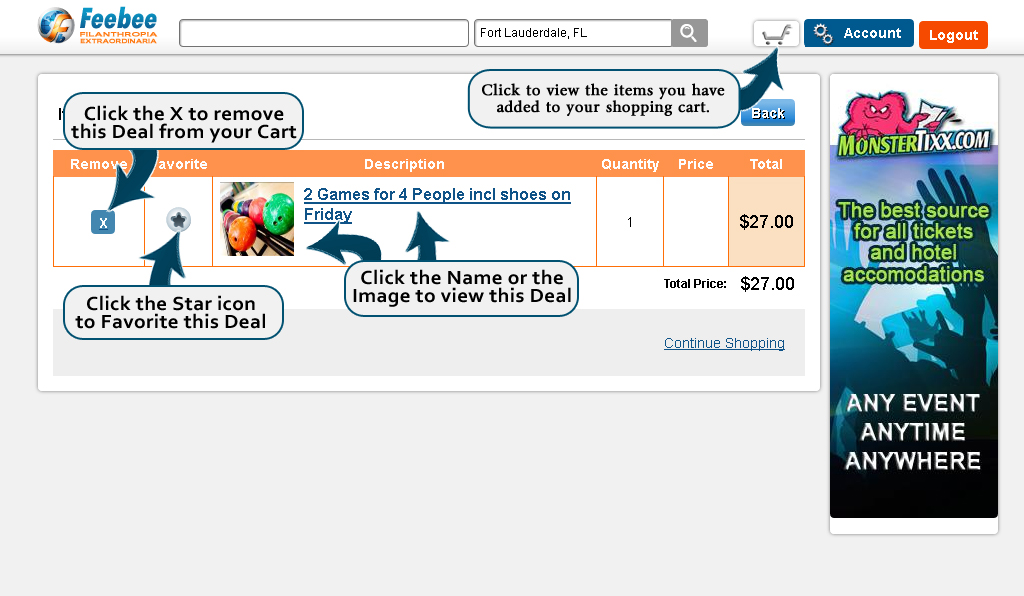
Shopping Cart Page
This is your Shopping Cart. It will display all of the Deals that you have added to your cart. You can favorite the Deals by clicking on the Star icon remove them by clicking on the X. Once done you can click on "Continue to Checkout" to start the purchase process.
To get to this page, use the Search Boxes at the top of Feebee to Shop for Deals and add them to your Cart, then click on the Cart icon on the top right of Feebee.
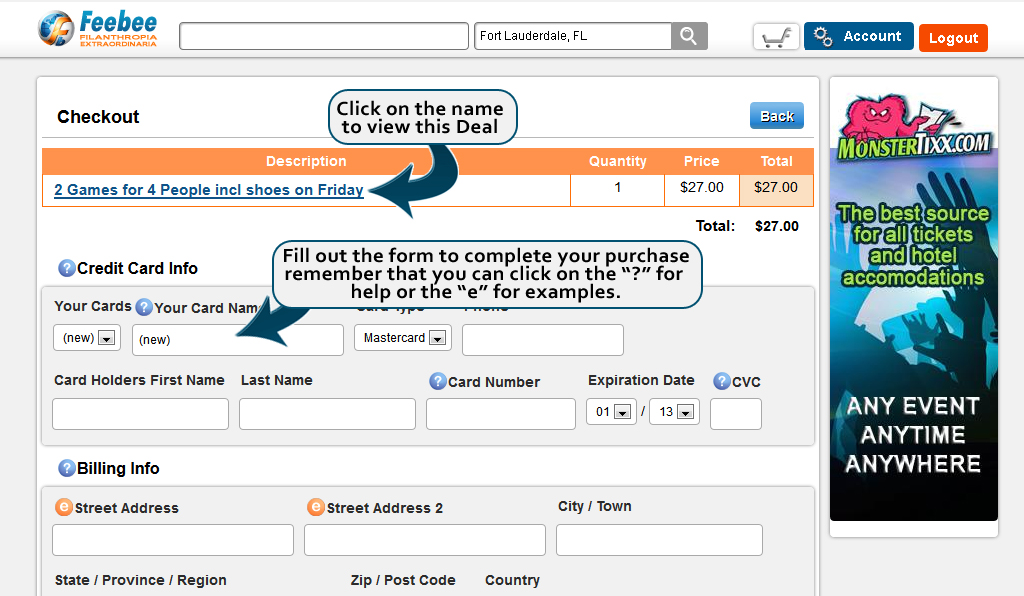
Checkout Page
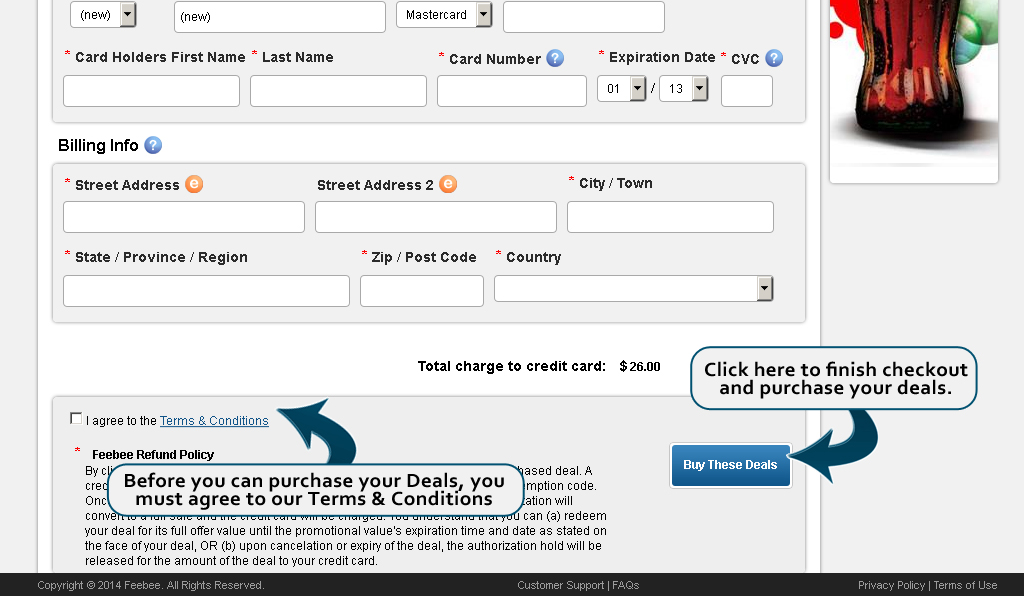
This is the Checkout. When you are ready to complete your order, this page allows you to provide a Credit Card for the purchases as well as Shipping & Billing info. Once you complete this page, you will purchase the items and be directed to Your Order Page.
To get to this page, use the Search Boxes at the top of Feebee to Shop for Deals and add them to your Cart, then click on the Cart icon on the top right of Feebee. When you have confirmed your order, click on the "Continue to Checkout" which will bring you to this page.
Your Order Page
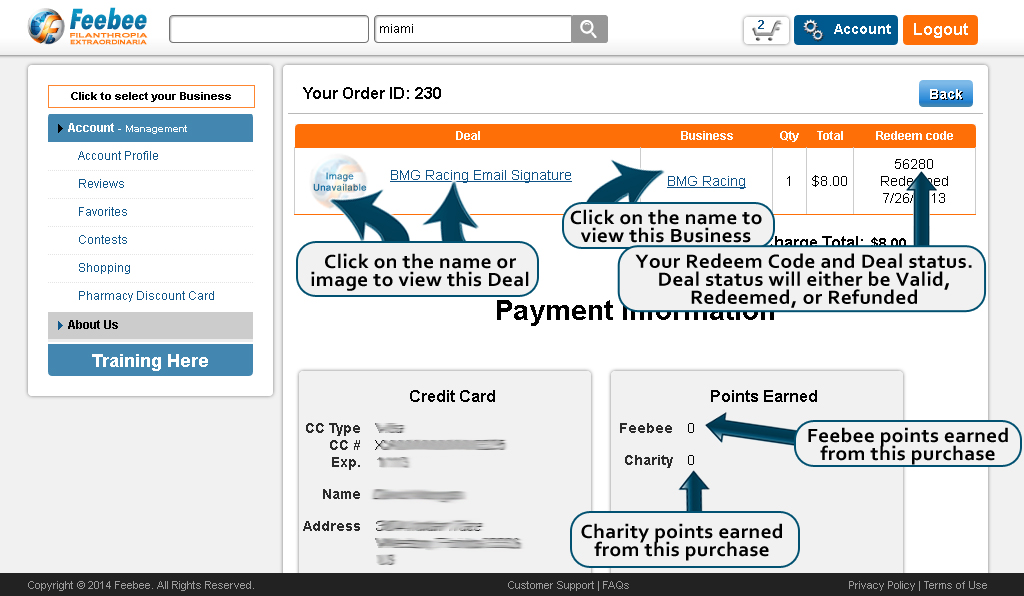
Your Order Page is a summary of your order. It will list the Deals you have purchased, and their Redeem codes. It will also show you the Billing information for that order and any points used or earned.
To get to this page, go to your Account Panel and then click on the "Manage your Shopping" tab on the left menu and then click on the "Your Order Hisory" link. When the page loads, click on the view button for the order you would like to look at.
Your Order History Page
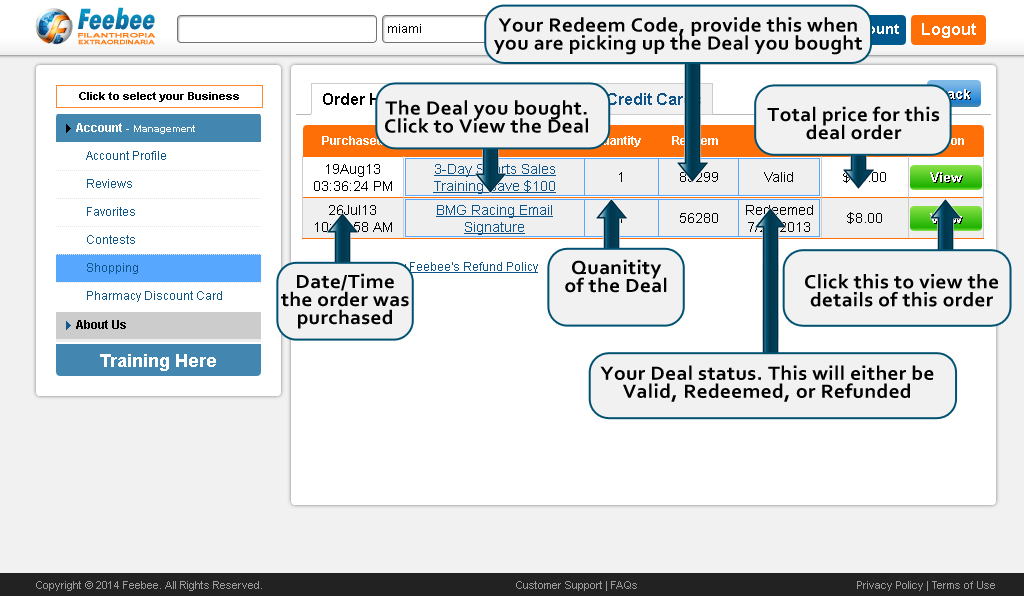
This page lists all of your past orders. You can click on the edit button to view the details for a particular order.
To get to this page, go to your Account Panel and then click on the "Manage your Shopping" tab on the left menu and then click on the "Your Order History" link.
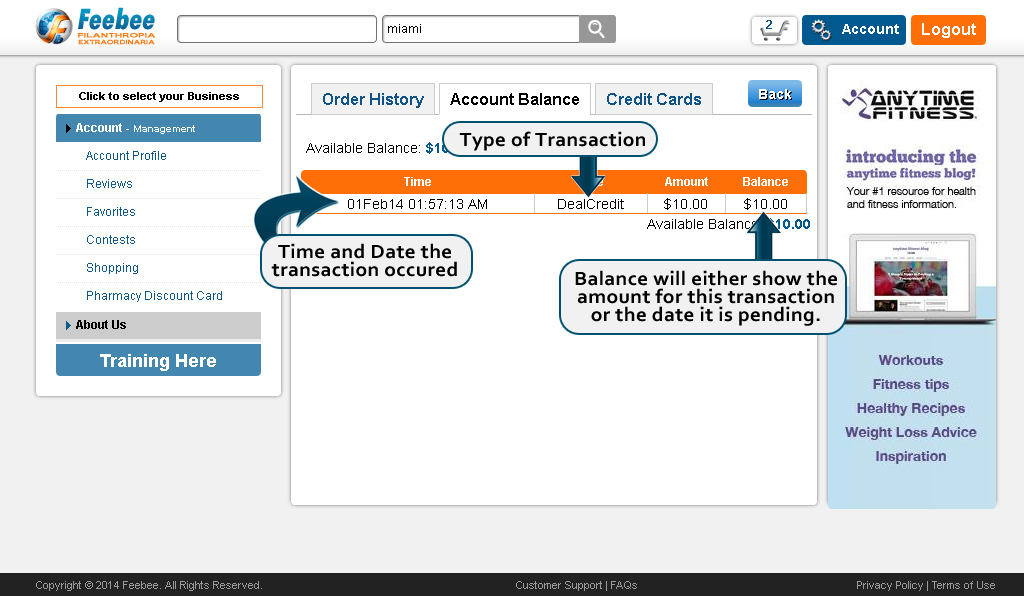
Shopper Account Balance Page
Your Shopper Account Balance Page will list all of the transactions on your account. It will give you an itemized breakdown of money spend or earned on Feebee.
To get to this page, go to your Account Panel and then click on the "Manage your Shopping" tab on the left menu and then click on the "View Account Balance" link.
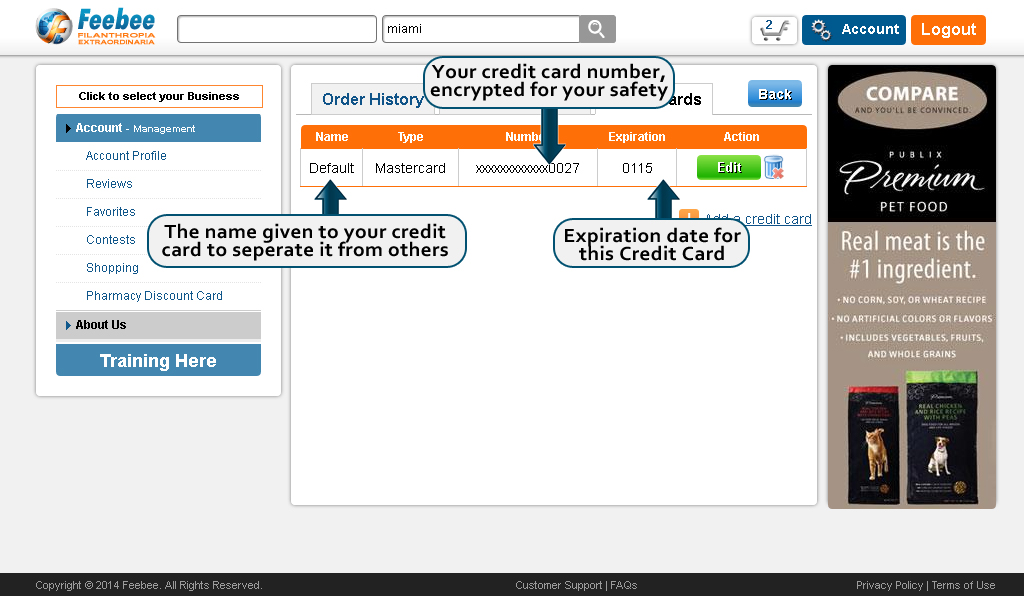
Shopper Credit Cards Page
This is a list of the Credit Cards you have. You can add new cards to your list or edit existing cards.
To get to this page, go to your Account Panel and then click on the "Manage your Shopping" tab on the left menu and then click on the "Add/Edit Credit Cards" link.
Business Tutorials
Business Presentation
View this Business Presentation
Learn how Feebee can help your Business now.
What Feebee Can do for Your Business Right Now
Feebee will connect every business to every shopper Worldwide
Learn on this presentation why getting started now will open up your business to the world and make you money.
WATCH THIS PRESENTATION!
HOVER HERE AND SELECT THE ARROWS TO START
HOVER HERE AND SELECT THE ARROWS TO START
Feebee wants to help with your two biggest challenges
Finding and Keeping Customers & Making More Money
There is no reason to be on the internet unless shoppers can find you. On Feebee they can!
- All searches for businesses are by location with the closest business to the search address showing first.
- Customers entering your Feebee Invitation Marketing ( FIM) CODE in a search will see your business around the world... Keep reading it gets more exciting.
- It is not possible for a business to pay for a higher search ranking. Every business is equal and easy to find.
- Every new customer or new business joining Feebee MUST enter a unique FIM CODE owned by an active Feebee Business.
- If a new customer or new business joins using YOUR FIM CODE they will see your Featured Advertisements for the rest of their lives on Feebee. There is no extra cost even if one million customers see you forever.
How does Feebee make you more Money?
Direct Revenue
- 100% of deal revenue goes through your Merchant Processor, after which Feebee will charge 7%.
- Run deals for one day to clear inventory or fill empty rooms.
- More customers finding you means more sales.
- Invited businesses joining with your code earn you a 30% longterm residual income.
Indirect Revenue
- Your unique keyword is worldwide and very valuable.
- Every invited consumer or business account sees your ads permanently. This is an an asset.
- Residual business revenue is an asset that can be sold.
- Consistent deal sales history increases business value.
Innovative Two Part Redemption System using your merchant service account
Deal Purchase
- Customers authorize and buy deals on Feebee using a credit card and receive a Deal Redemption code. Customer and the Business can cancel any deal prior to redemption.
Deal Redemption
- Customer provides Deal Redemption Code to business and receives the deal.
- 100% of deal revenue charged to your business merchant account. Feebee then autobills 7% of deal amount.
- Business owners can add and authorize employees to accept Redemption Codes on their smart phone or computer anywhere at anytime.
- Customers get great deals, businesses keep their profits
But What is Feebee?
Feebee is a marketing tool that will allow businesses and customers to connect in a central and easy to understand place.
- Invite Customers using your FIM Code and they will see your add whenever they are on Feebee
- Customers can quickly find and save you on a favorites list
- Add languages to increase customer base
- Drive the Feebee traffic to your website and increase search ranking in other search engines
- An easy way to market your business in any city in the world
- The Only marketing system that increases the value of your business
Now the Basics: Every Business must Advertise and the internet has changed the options
Before internet:Understandable
- Yellow Pages
- Newspaper& shoppers
- Flyers, Postcards, Direct Mail
- Television & Radio
- Billboards
- Local papers
- Business Cards
- Word of Mouth
After the internet: A little confusing
- Google - Everyone searches here
- Facebook- 1.2 Billion People talk
- Amazon-Worldwide Sales Site
- Ebay-Direct to consumer
- Website Designs, SEO
- Some print media, Business cards
- Television & Radio
- Word of Mouth
More advertising should equal more sales. Bad advertising just means more lost money!
It is very stressful to decide how much to spend every month, what advertisements to use and with what company.
Buying advertisement space for a limited time can be very expensive with little long term return.
Don't spend revenue on advertising unless you know where it will show up and in front of what audience .
Are you afraid that your competition is just clicking your ad and costing you money?
You should not need an outside expert to explain how to advertise correctly with famous internet companies.
Here is what YOU can do today on Feebee
- Create your own deal; you control its price and limits, show it where your target market is.
- Add your business in minutes, make it look great, easily change it when you want.
- Create and control your ads in four different locations.
- Search for your deal and find it immediately. See who viewed, saved, bought or redeemed it.
- Search for and find your business instantly and see what competitors look like.
- View your ads live just as customers will see them. li>
How much would this cost from an Advertising and Marketing Company? ($$$$)
- Four Advertising spots that you control and can be changed at any time.
- Searchable deals you create and control with addresses to target specific markets.
- Own a code like "diamond" that when entered in a search worldwide will show and link to your business.
- A business search result that links to your account and website.
- Offer jobs online instantly
- A new customer or business joining with your code permanently sees your ads and can earn you residual commissions.
- Create a fully automated contest to attract customers worldwide.
- Full reporting and much more
All this for the Cost of 1 cellphone plan
Feebee is affordable for any business.
Validate the cost versus exposure and sales on a monthly basis.
You are not locked into a term contract, if you don't see success you can cancel the subscription at any time.
Even the smallest business in the smallest town can be connected to the world.
Large corporations will be able to expand the plans to supercharge their marketing departments.
Any businesses can get started on Feebee with all the marketing tools to be successful, gain and keep customers, and make more money.
Feebee Invitation Marketing Commission Plan
Feebee is growing worldwide and will give back to communities everywhere. Our Keyword Commission plan is designed for business to be rewarded for inviting customers and businesses and reward those businesses that actively market using Feebee.
With each monthly subscription, 30% of the base plan is sent to the owner of the Keyword used to add the business, this is recurring as long as the business is active.
Take advantage of the Free Trial Offers for businesses. Use your Keyword to capture future commissions.
E-commerce is coming soon to every country. Once available plans can be selected and paid for. Commissions can then be paid.
Turn your company into a Marketing Team
- Invite employees into Feebee and add them to your company account from mgr to sales.
- Each person gets different access to help with deals, advertising or sales.
- Build company pride and teamwork with little training by letting them grow the company and make sales 24Hrs a day right from their smartphone .
- Create and use contests to invite customers to join worldwide through social media.
- Add non-employees worldwide to invite businesses and sell for you.
- All your team members can invite businesses anywhere to join with your CODE and use commissions as bonuses.

International Contest Program
Contests are fun, everyone loves to win. Earn more tickets by sharing with friends.
Give every shopper a reason to open your business page and learn about you!
Feebee automatically starts and stops each contest and picks the winner. Just pick a prize that will draw attention and set the parameters, Feebee does the rest!
Every new shopper or business account joining Feebee through your contest is linked to your business forever with a featured ad.
Drive customers from your contest to your website to increase traffic.

Social Media Marketing and Reports
Social Media is part of every marketing campaign.
We will try to make it as easy as possible for you to push a button and send out invitations.
Feebee links every business, FIM Code, job, deal and contest to email and social media.
Most major sites such as Facebook are active to help you grow your brand and business.
Realtime reporting is available and part of your Feebee plans.
Maybe the most Important Reason of All
We are building the worlds most connected Charity Project Platform.
1% of all sales on Feebee goes back to shoppers to assign to a charity project. This will create awareness and support to charity projects and become more invested in their success.
You will soon be a part of giving back to local and worldwide communities through charity projects that you choose.
You may want to sponsor or donate to a project that is important to you.
Each business will be able to show their philanthropic history on Feebee so people can follow their good deeds over time.
Videos Slides and pictures will document all the good being done for years to come!
Every business account starts with English. Add your language and other languages.
- Every word on your business account can be in multiple languages.
- Edit your Business account. Explain yourself in English, Spanish, Portuguese, German and more.
- When people are searching in your country, they will search in their language. Make it easy for them to learn about your services.
- Start by changing the generic wording on your account. This wording was given during your quick signup. Enter in new descriptions, ads and business pictures in your language.
- Go back and try to do the same in English. Then for fun add another language.
- The World Welcomes You!


Please excuse our errors. We are working hard to bring Feebee worldwide.
Account Panel to the left and the Business list below will help you get started. Complete the list to be successful.
Explore the tabs to the left to learn more.
Click training to the left if you get lost.
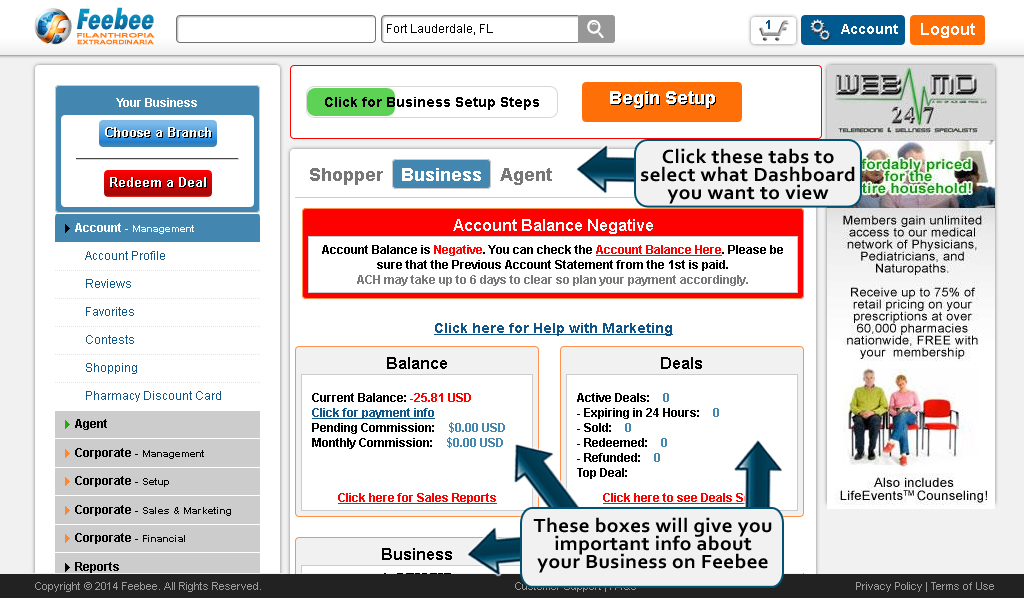
Business Dashboard Page
Feebee gives you the ability to easilyview the important inforamtion of your Business all in 1 location.
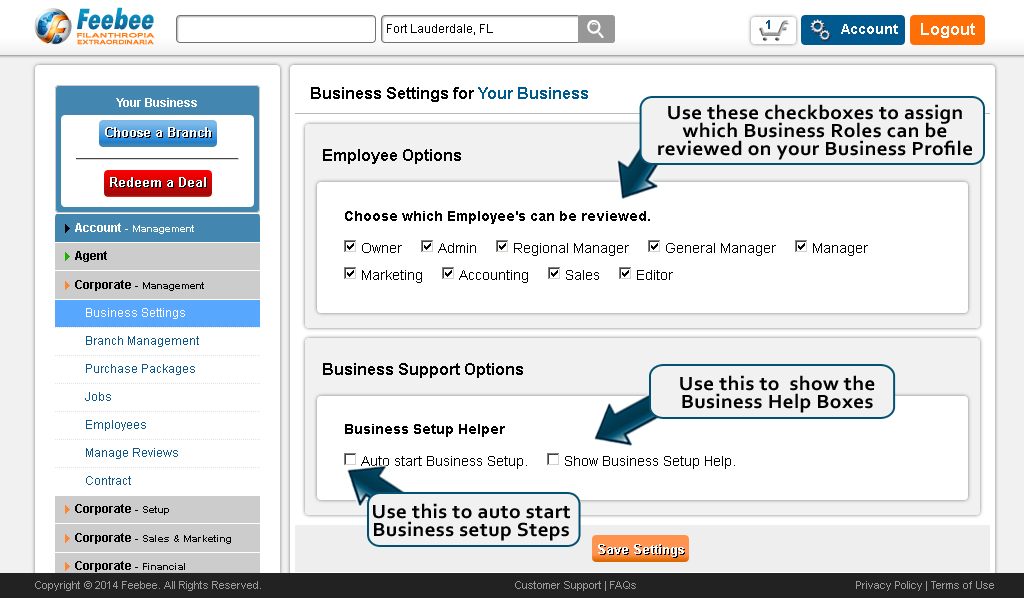
Business Settings Page
Manage your Business settings.
Branch Management Page
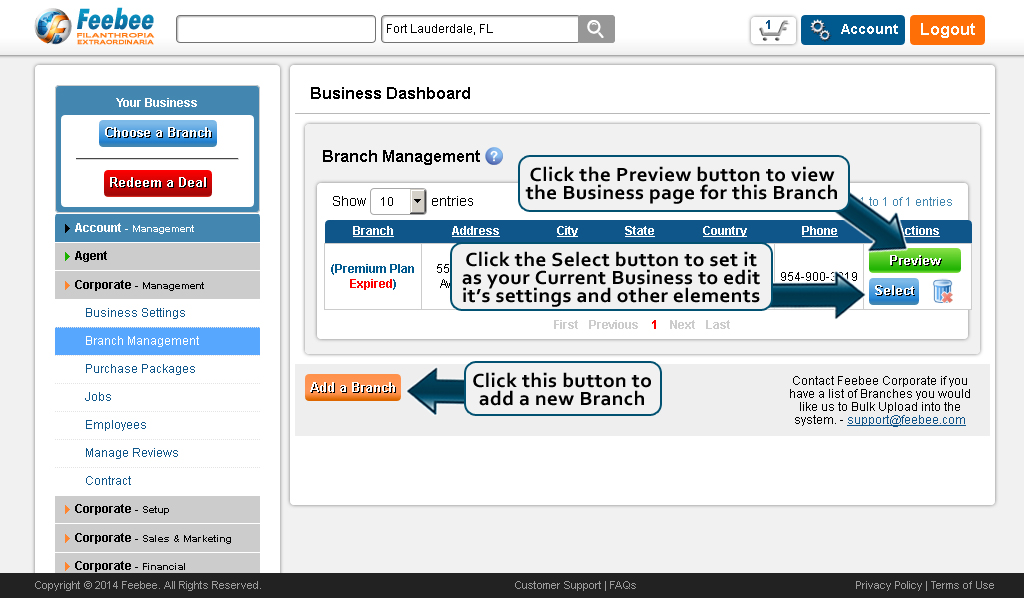
Feebee gives you the ability to easily manage your Business, even if your Business is a Corporation. With the Business dashboard, you can add Branches to your Business Account. These Businesses can be created from your Business Dashboard, and then you can select that Branch to further customize it until you're ready to upgrade that Branch.
Once you add your first Branch, your Business will become a Corporation. You can now switch between the Corporate Branch and the Newly created Branch.
To get to this page, go to your Account Panel and then click on the "Business - Management" tab on the left menu and click on the "Business Dashboard" link.
Branch Content Blast
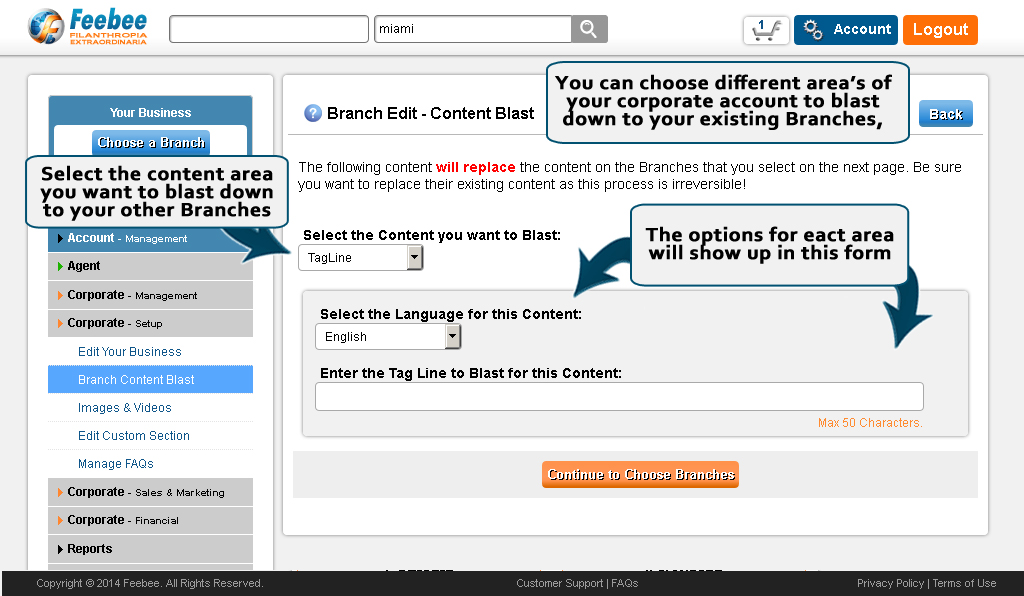
This information allows you to send information to multiple Branches in the same Business, all at the same time. Simply choose the content you want to replace and try the new information that you want to use then select hte branches you want to repalce the content of..
Review Management
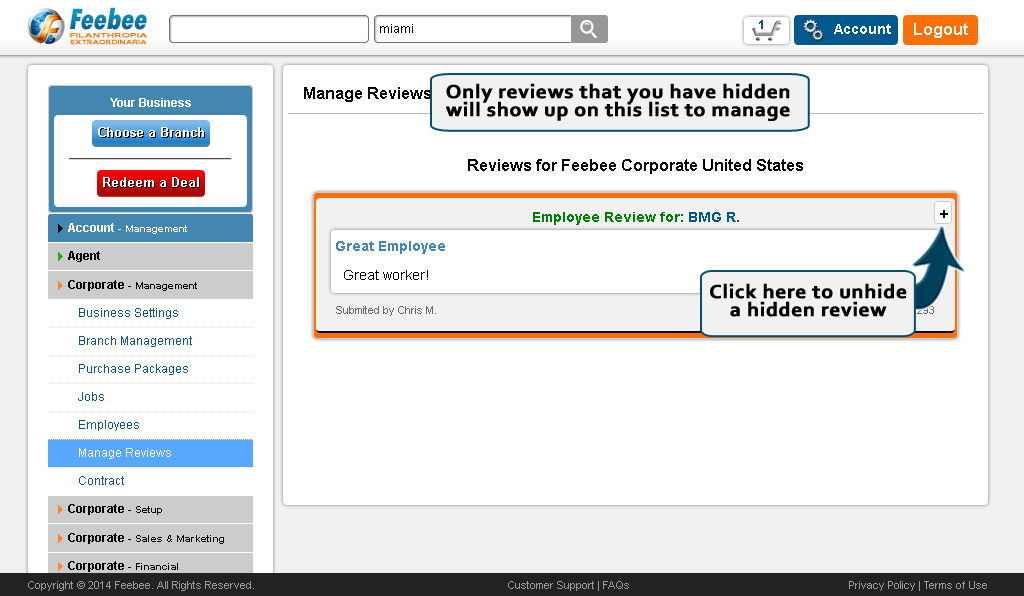
When you hide a review on your Business Page, you can edit it on your Review Manage page to unhide it. Later there will be more options for this page.
SmileMiles
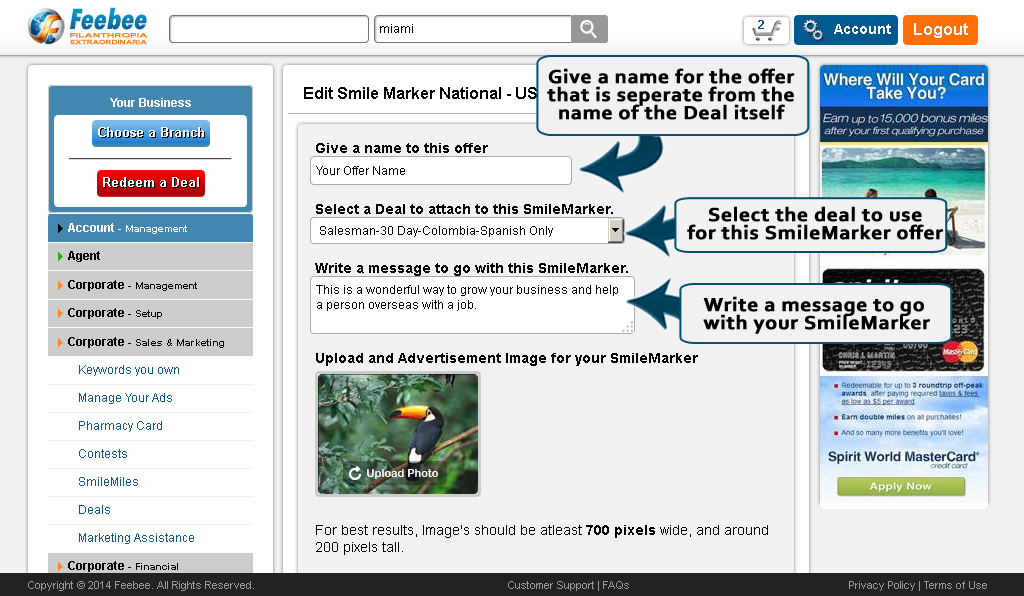
The SmileMiles page will be accessible when your Business owns a SmileMarker on our SmileHighway. You can set up your SmileMarker using this page.
Edit your Business Page
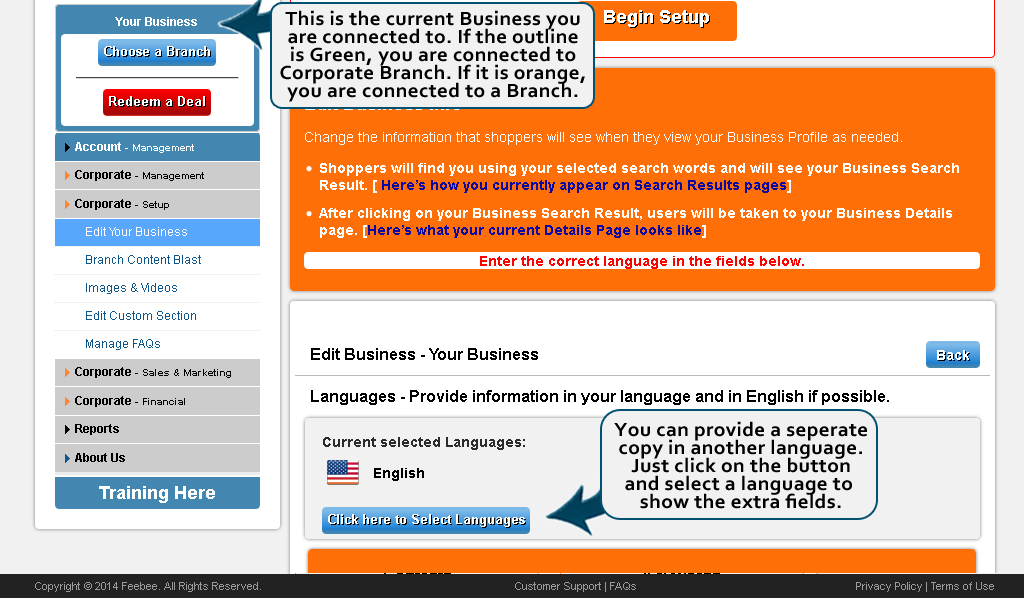
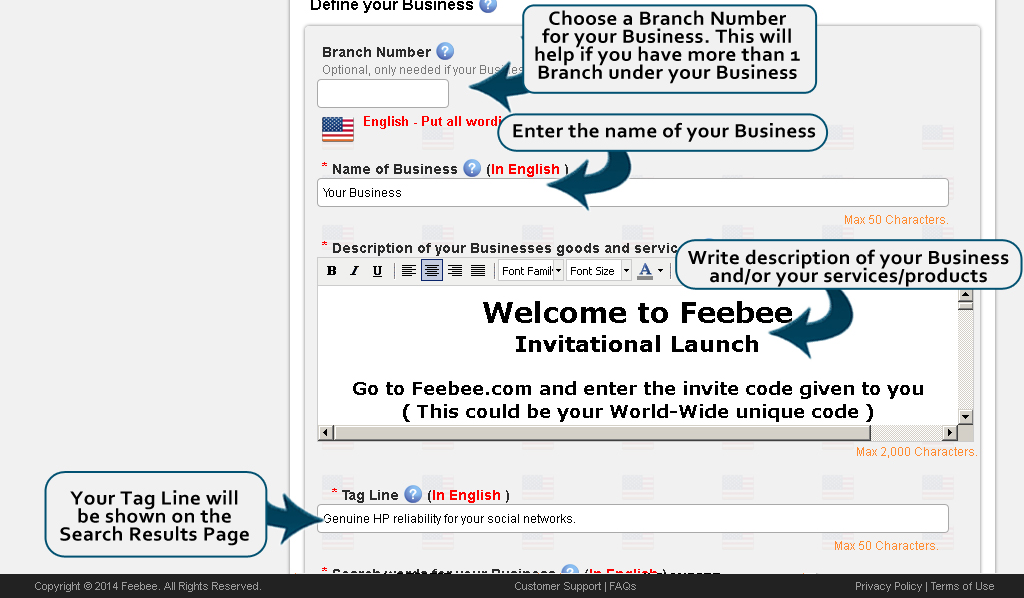
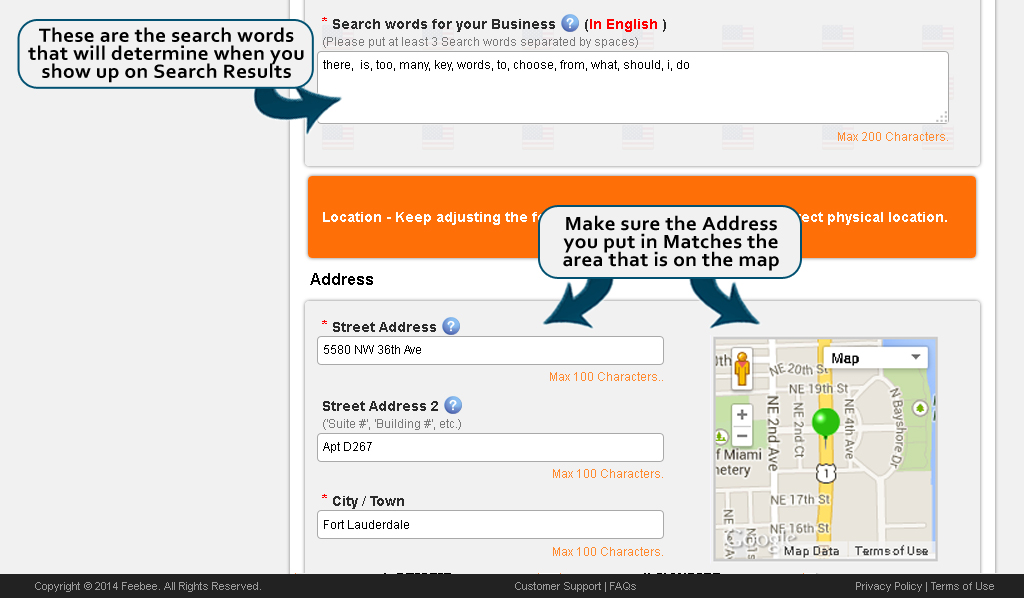
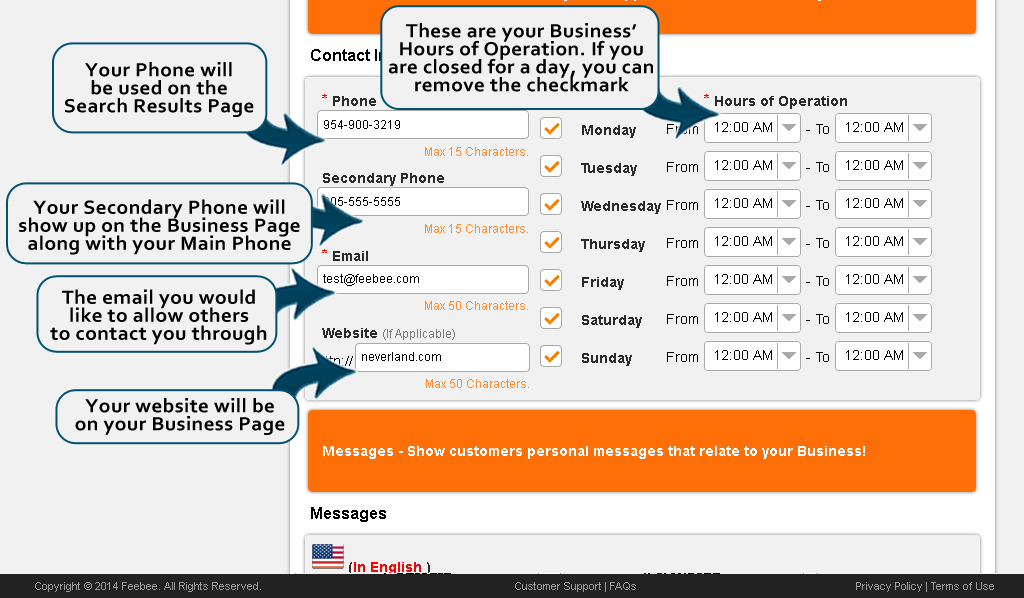
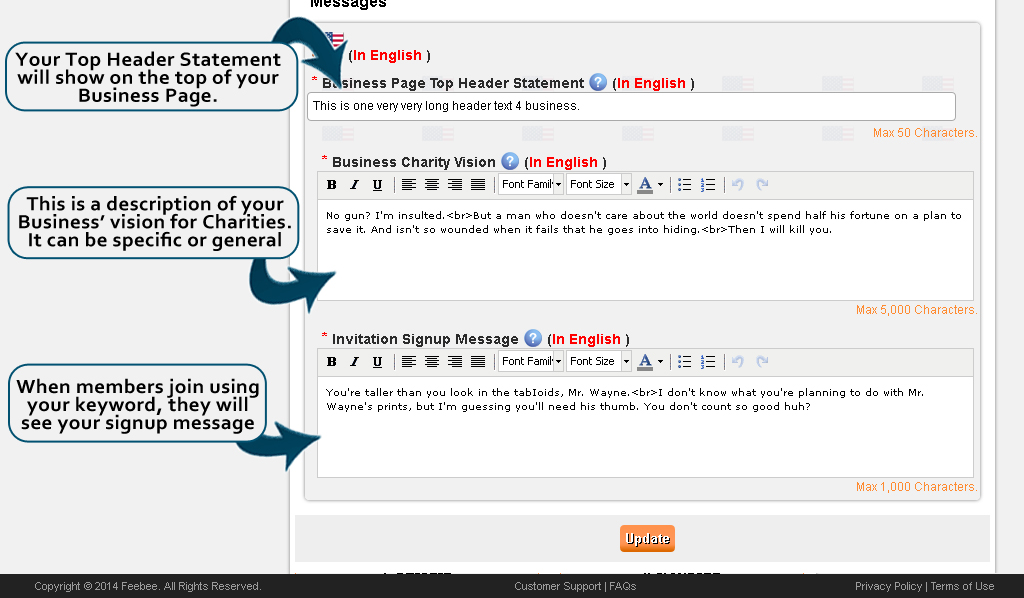
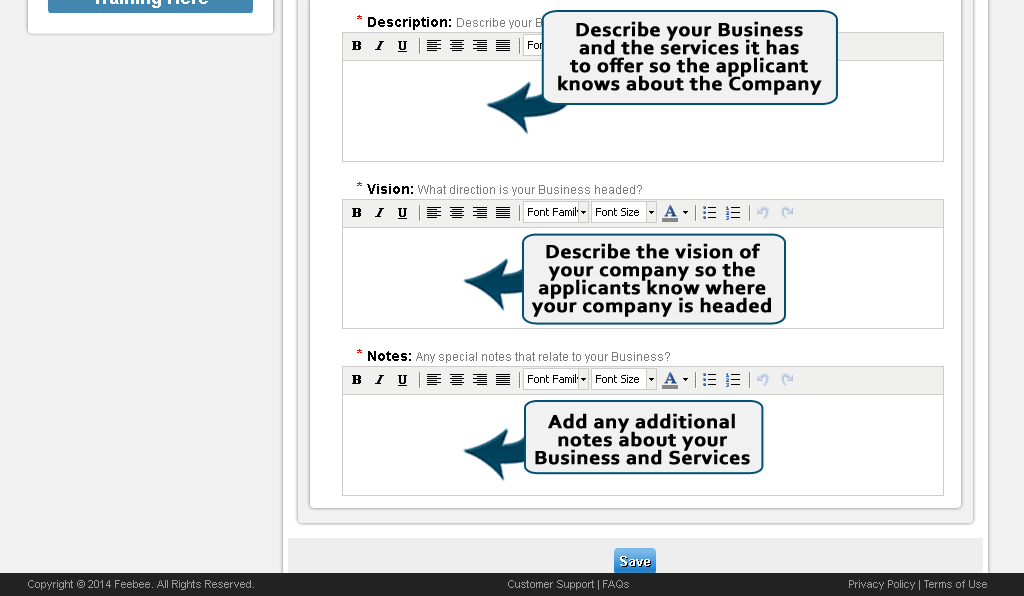
Feebee lets you edit your Business with an easy to use form. When you edit your Business, the information you fill out will create your Business Page as well as your Business Search Result.
To get to this page, go to your Account Panel and then click on the "Business - Setup" tab on the left menu and click on the "Edit your Business" link.
Add Images & Videos Page
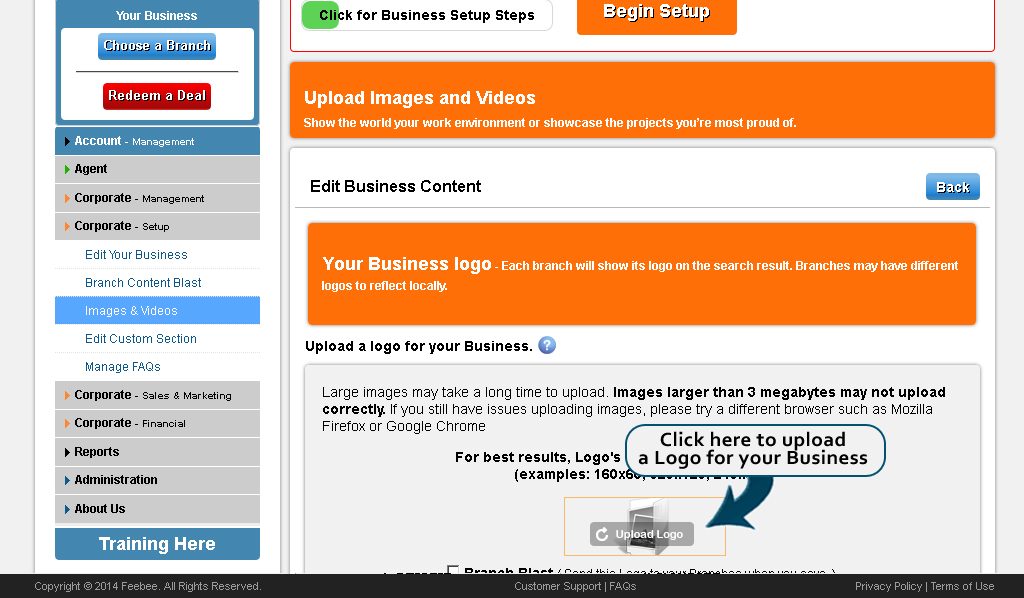
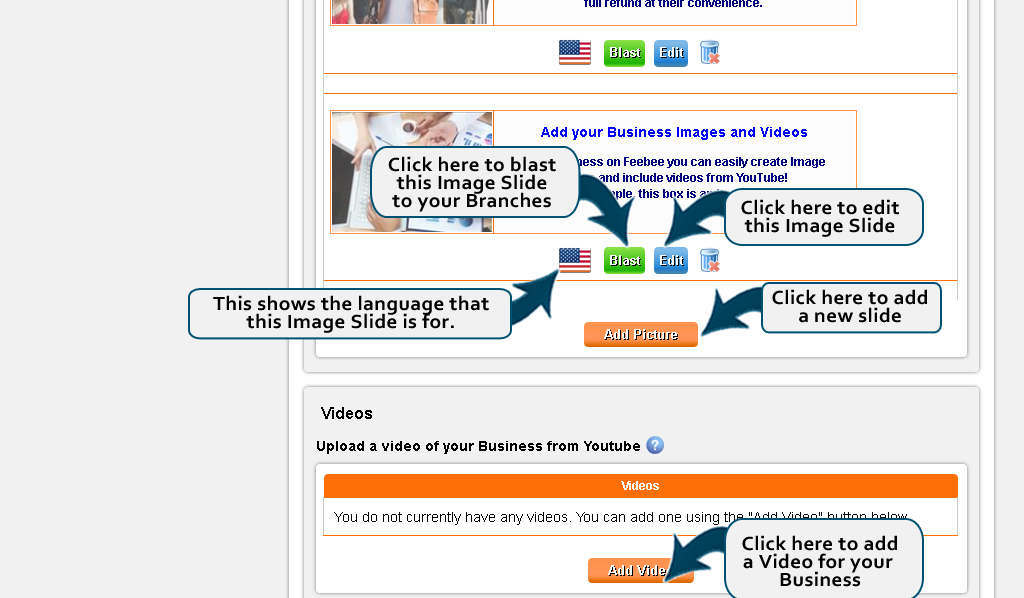
This page allows you to upload Images and Videos to connect to your Business Page. You can upload a Logo and Create up to 5 Image Slides with Text to go along with them. In addition to that, you can also link Videos from YouTube or other video sharing sites.
To get to this page, go to your Account Panel and then click on the "Business - Setup" tab on the left menu and click on the "Add Images & Videos" link.
Create/Edit FAQs Page
Providing Frequently Asked Questions gives your Shoppers the information they need without having to speak to anyone directly. The more you provide, the more your Shoppers will know beforehand. Create easy to understand questions and answers to anything that your customers often ask you.
To get to this page, go to your Account Panel and then click on the "Business - Setup" tab on the left menu and click on the "Create/Edit FAQs" link.
Deals Presentation
View this Deal Presentation
Learn how Deals can help your Business.
Feebee Deals
Make the Decisions
Keep the Profits
Feebee is taking the mystery out of internet commerce and giving you back control of your marketing with Feebee Deals.
Create a deal and put it where you want!
You set the price, volume, and duration of Deal!
100% of the sale price goes through your Merchant Processor, after which Feebee will charge only 7%
Instantly adjust based on inventory and results!
The Best Deals Marketing Online!
WATCH THIS PRESENTATION!
HOVER HERE AND SELECT THE ARROWS TO START
HOVER HERE AND SELECT THE ARROWS TO START
Deals have addresses on Feebee.
Feebee searches are by location. This means that a customer searching received results based on their location. The closest deals to the customer show up first.
A business can put deals exactly where their customers are or want them.
Create a deal and enter an address of an office building, city center, or street address where you want the deal to be found .
Create deals and rotate them through different sections of your city to compare results and see reports on where you are getting new business .
In the past this was done using local newspapers and publications. Now you can do it instantly for a fraction of the cost anywhere in the world saving with reports on the success of specific deals!
Deal Mapping, Planning & Strategy
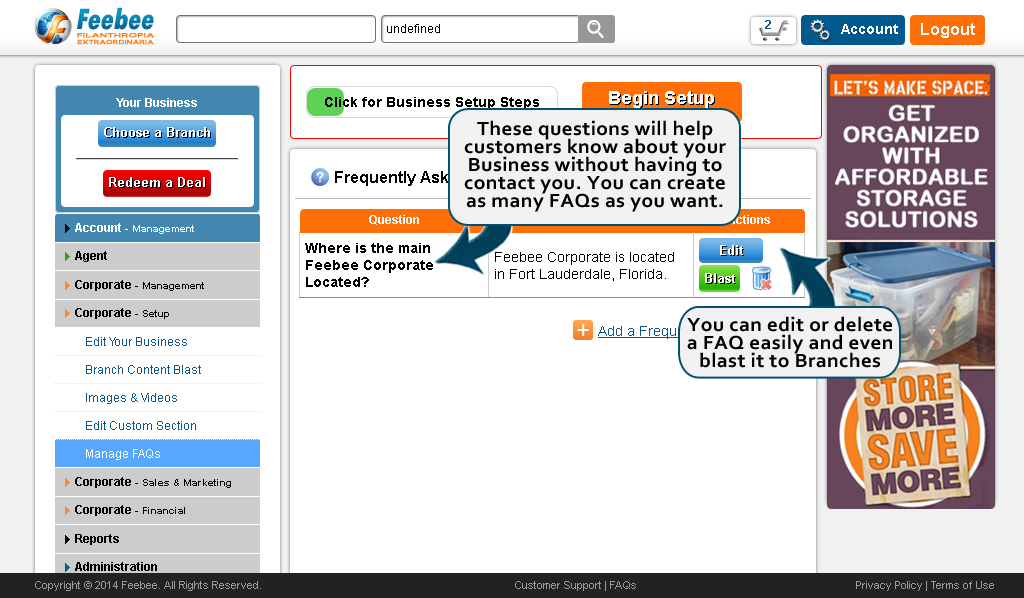
Check the location of your deals on the deal map. This helps to plan your marketing.
Easy to understand. Search near the addresses of your deals to see them appear in search results.
Upgrade and extend the deal range. Place deals in new markets in other cities, countries or worldwide. Search and find your deals instantly anywhere!
Full control allows you to truly know where your deals are and what customers are seeing them.
Deals done the Right Way
Great for Customers -
Great for Businesses
Short term deals
- Run weekly one day deals on slow days to drive traffic
- Create a Holiday Weekend deal
- Last minute deals instantly
- Number of deals available equals amount of inventory
- Test a new product or service quickly and easily
Long term deals
- Month long deals for regular customers. Stop anytime.
- Use as part of traditional marketing programs
- Consistent deal sales history increases business value
- Standard system for repeat customers
Innovative Two Part Redemption System
Receive 100% of redeemed deals
Deal Purchase
- Customers buy deals on Feebee using a credit card and receive a deal redemption code.
- The customers credit card will be issued an authorization for the deal amount.
- Customer & Business can cancel deal or the deal may expire.
- If the deal is cancelled or expires the authorization is cancelled and the credit card is not charged.
Deal Redemption
- Customer provides deal redemption code to the business and the deal transaction is completed. 100% of deal funds will enter the business merchant account for processing. Feebee will charge 7% to the business after the deal transaction is completed.
- Business owners can add and authorize Employees to accept Redemption Codes on their smart phone or computer anywhere at anytime.
- Customers get great deals, businesses keep their profits
Deals on Feebee are meant to be simple.
Create every part of your deal from the price, limits, refund policy and how to redeem it.
Use the deal as marketing to drive customers into your store.
Spread out deals to expand your markets and find new customers.
Most of all enjoy your new freedom to understand how to use the internet to help grow your business!
Manage Deals Page
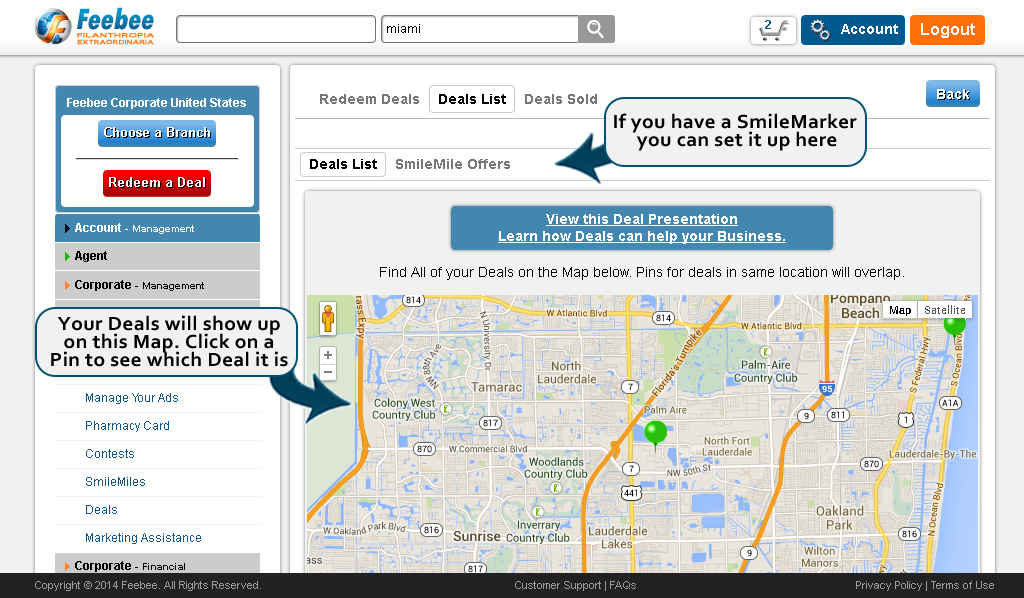
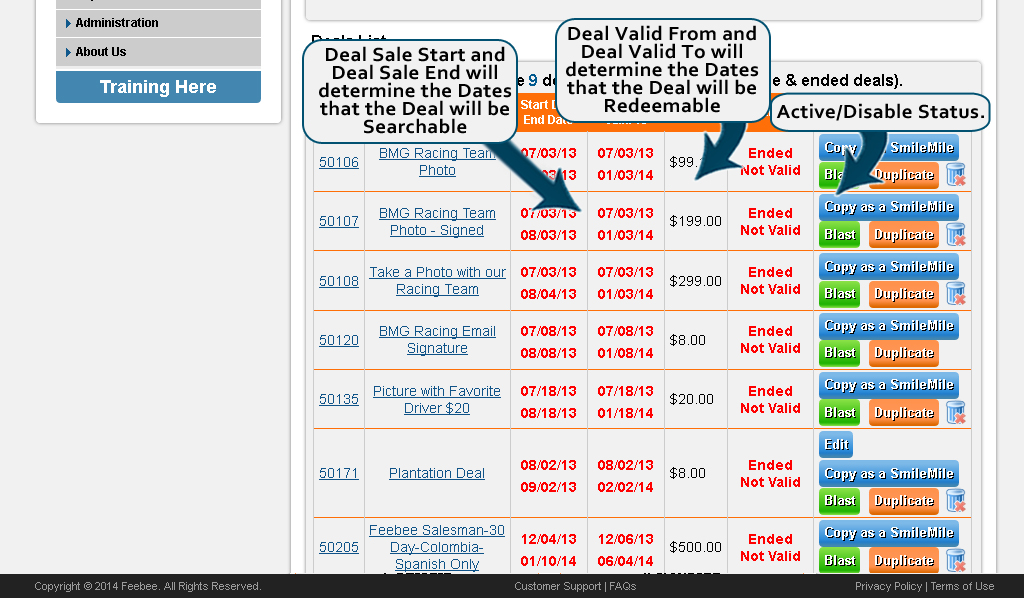
This page will show you a list of all the Deals you have created. It will show you expiration & redeem dates, as well as whether or not the Deal is active in search results.
To get to this page, go to your Account Panel and then click on the "Business - Sales" tab on the left menu and click on the "Manage Deals" link.
Payment Processors
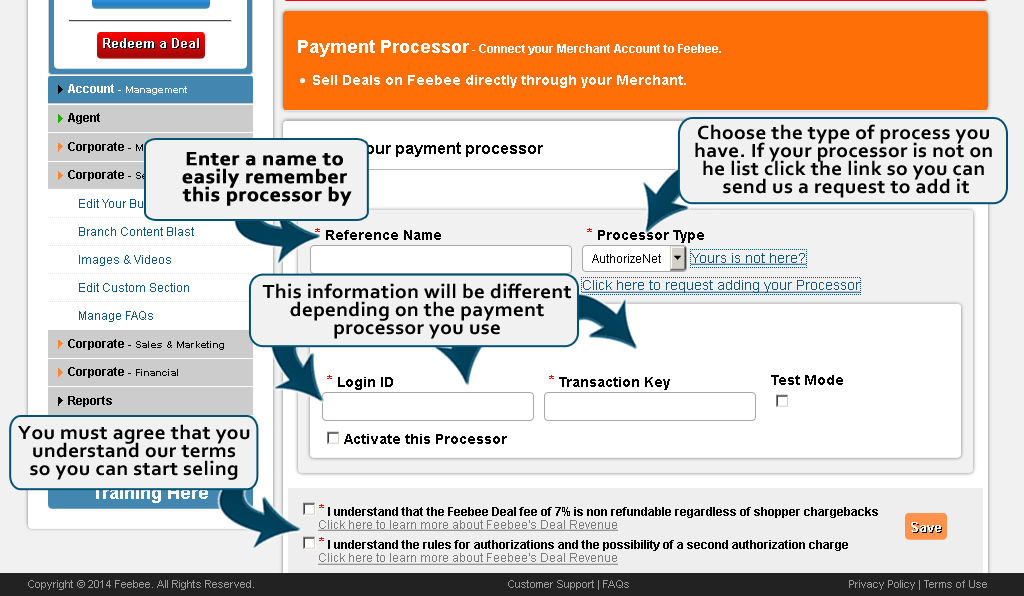
This page will allow you to set up your own payment processor to Feebee so you can sell deals through your Merchant Account. This allows you to collect all funds immediately when available and you will be billed for any fees owed.
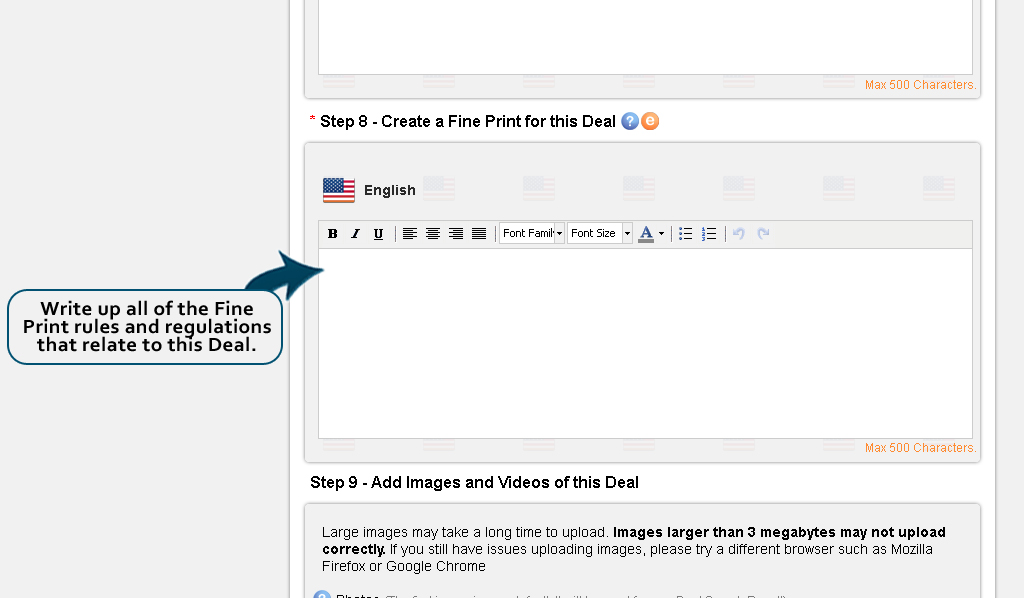
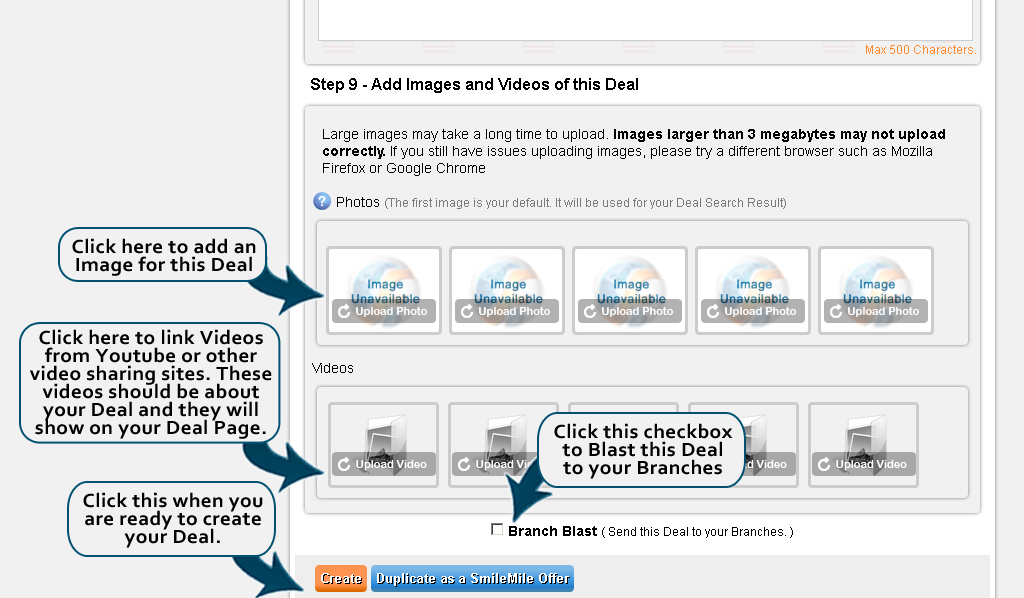
Add a deal Page
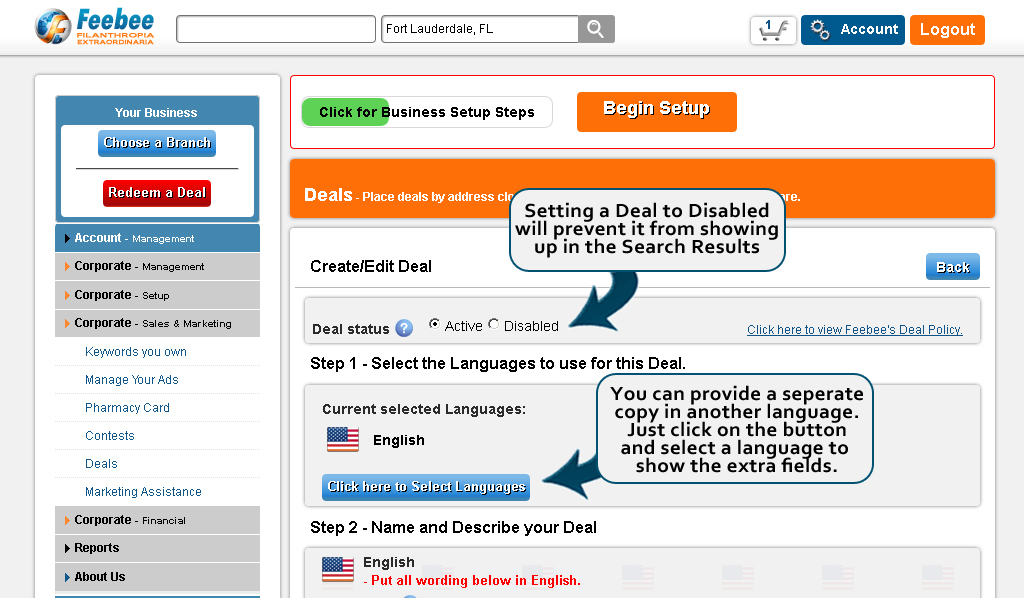
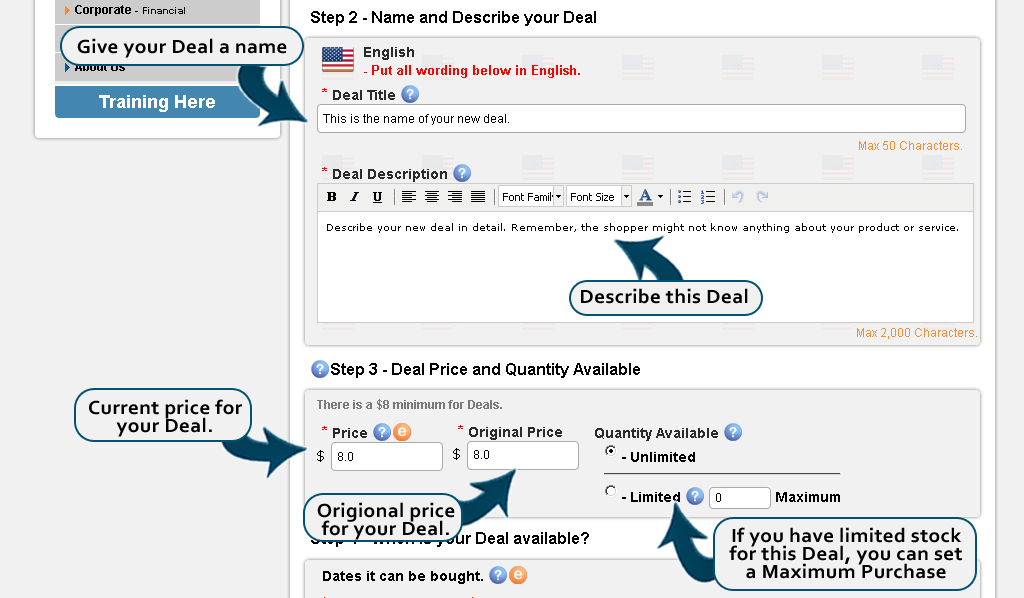
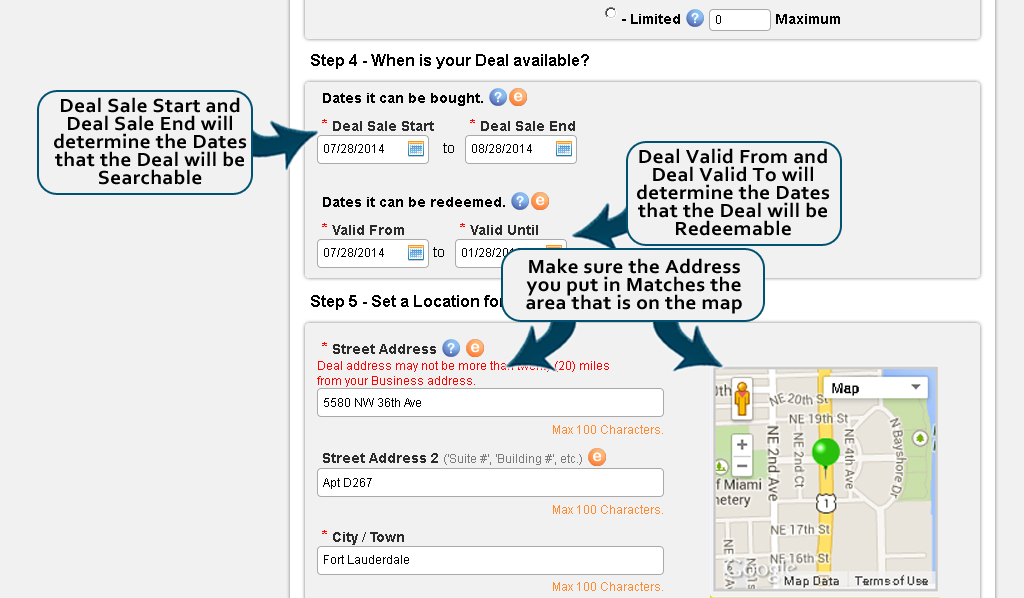
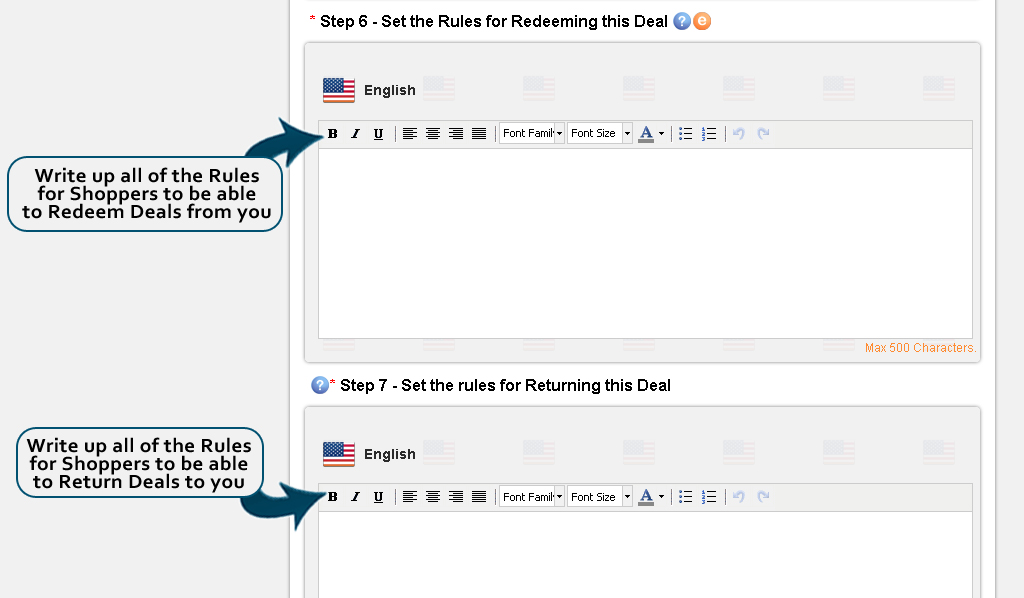
Feebee allows you to customize your Deals to your specifications. You can also place Deals in an address other than your Business address. Doing so allows your Deals to show up in different area's so you can reach a larger audience.
To get to this page, go to your Account Panel and then click on the "Business - Sales" tab on the left menu and click on the "Add/Edit a Deal" link, then you can either click the edit button on an existing deal, or click the "Add a deal" button.
Redeem a Deal Page
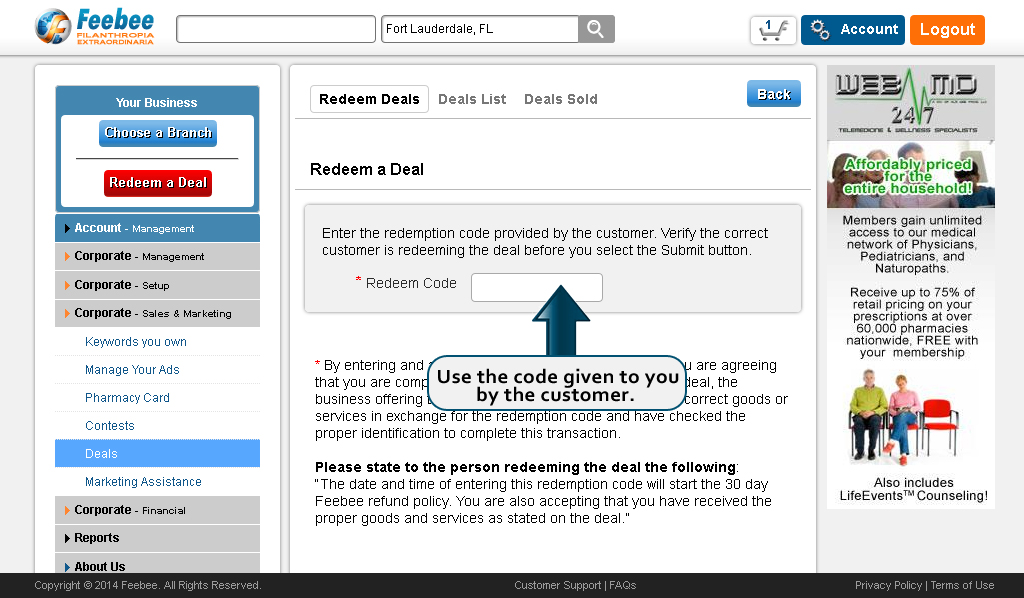
With Feebee's Deal Purchase System, Deals need to be Redeemed in order to complete the purchase process. With our Redeem page, you can quickly enter the code provided by the customer and then Verify their identity. This process protects both the Shopper and the Business.
To get to this page, go to your Account Panel and then click on the "Business - Sales" tab on the left menu and click on the "Redeem a Deal" link.
Deals Sold List Page
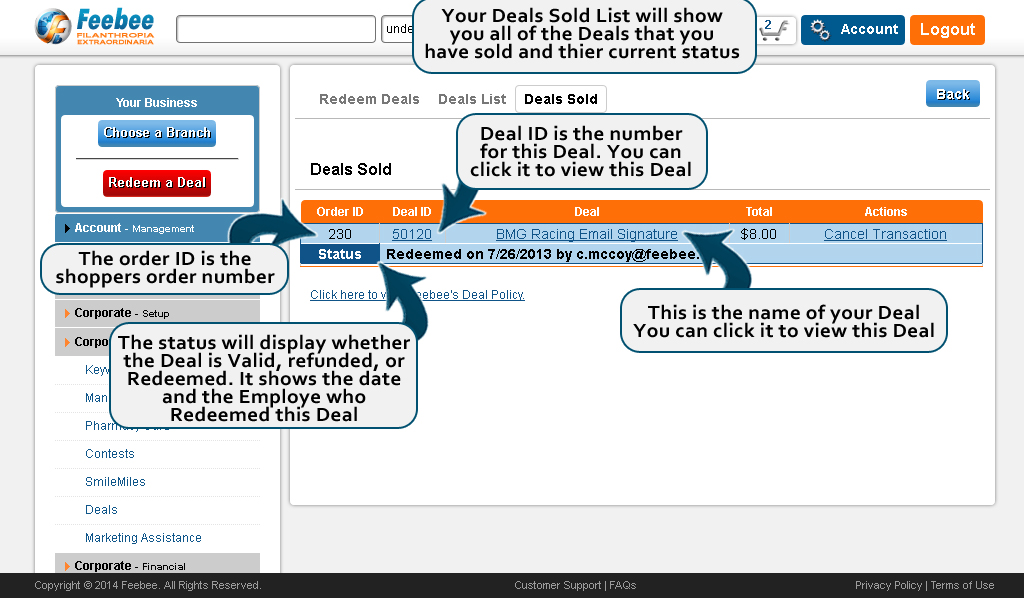
This page will give you an itemized list of the Deals you have sold. Along with other details, this list will show you whether or not the Deals are still valid or if they have been refunded or redeem.
To get to this page, go to your Account Panel and then click on the "Business - Sales" tab on the left menu and click on the "Deals Sold List" link.
Employees Page
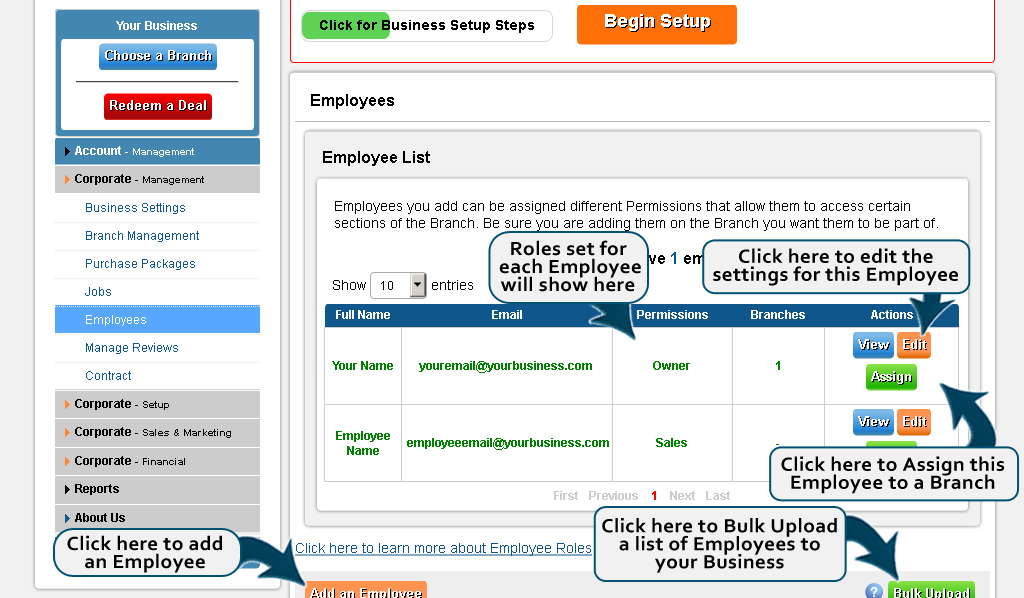
With Feebee's Employees, you can designate other Feebee accounts to be able to Redeem Deals for your Business.
When you add an employee, they become a member of the Branch that you are currently Connected To. This will give them different permissions and access to certain area's depending on their role. For Example, if they are given the Sales role, they will be able to Redeem deals for the Business.
Below is a list of the roles and their permissions. When an Employee is added to Corporate, you can also assign them to a Branch or even Multiple Branches.
To get to this page, go to your Account Panel and then click on the "Business - Management" tab on the left menu and click on the "Employees" link.
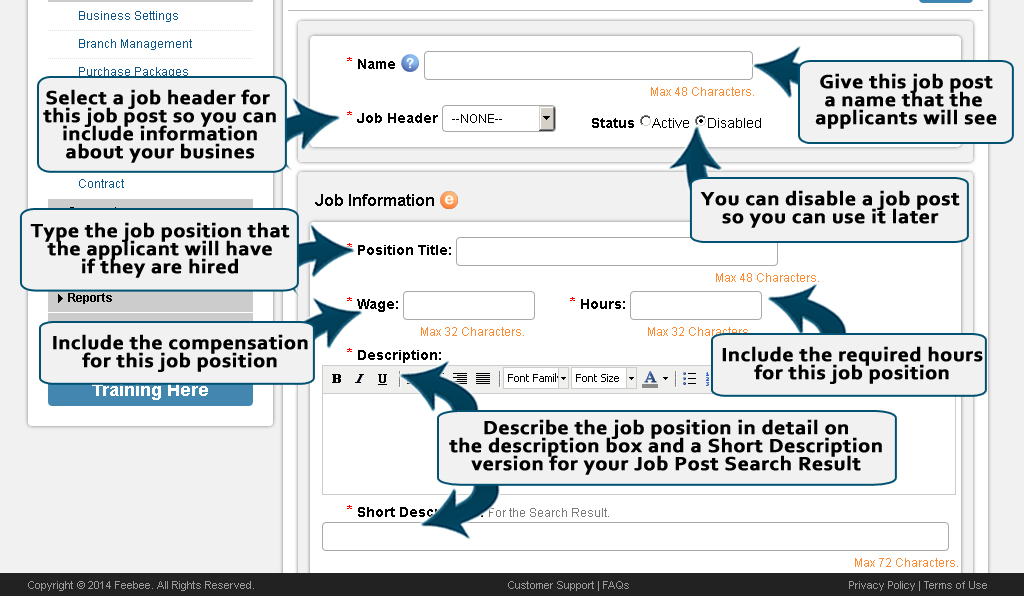
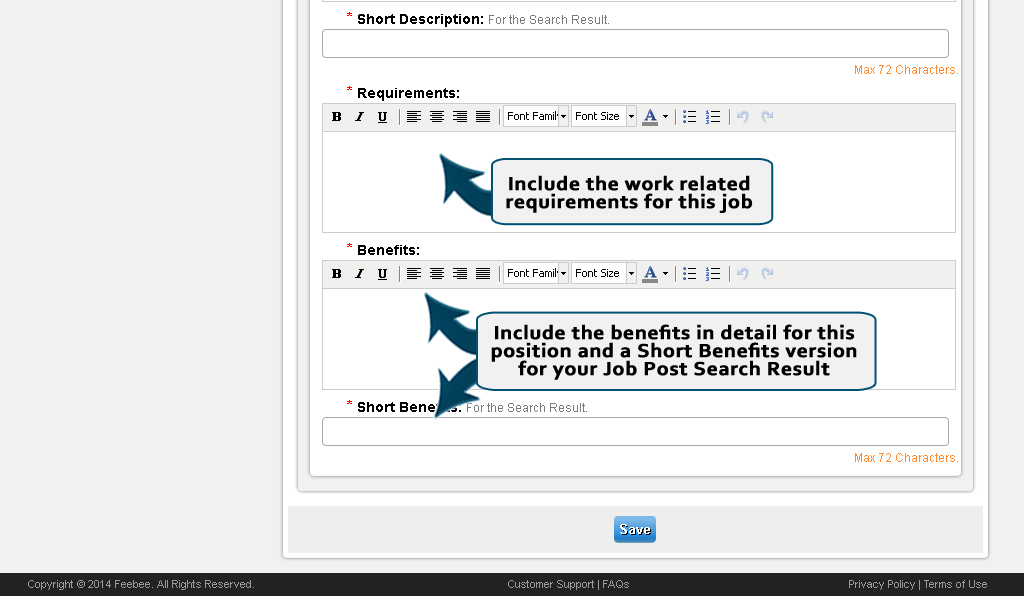
Job Post Page
With Feebee's Employees, you can designate other Feebee accounts to be able to Redeem Deals for your Business.
When you add an employee, they become a member of the Branch that you are currently Connected To. This will give them different permissions and access to certain area's depending on their role. For Example, if they are given the Sales role, they will be able to Redeem deals for the Business.
Below is a list of the roles and their permissions. When an Employee is added to Corporate, you can also assign them to a Branch or even Multiple Branches.
To get to this page, go to your Account Panel and then click on the "Business - Management" tab on the left menu and click on the "Employees" link.
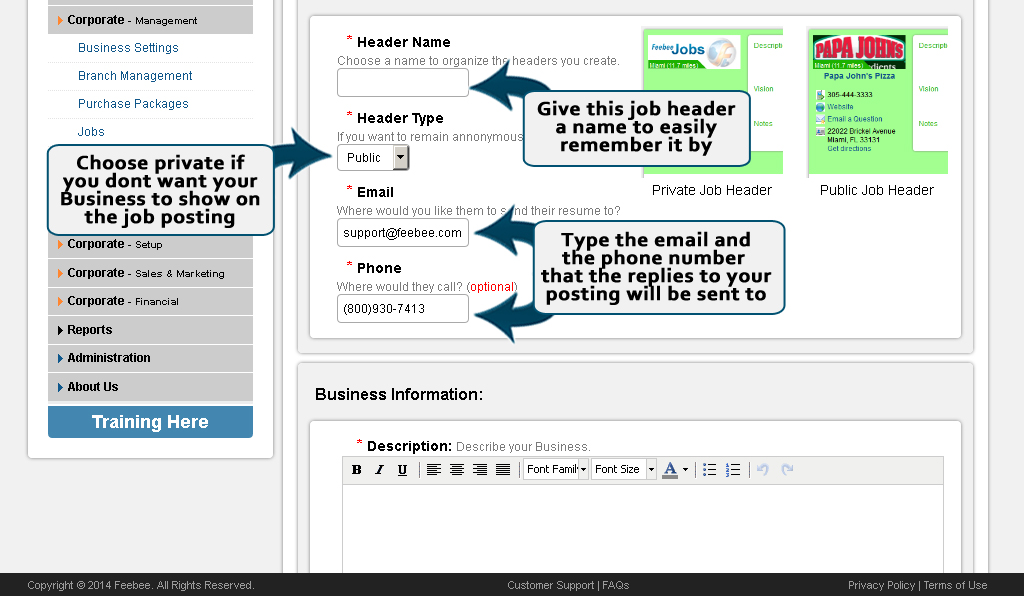
Job Header Page
With Feebee's Employees, you can designate other Feebee accounts to be able to Redeem Deals for your Business.
When you add an employee, they become a member of the Branch that you are currently Connected To. This will give them different permissions and access to certain area's depending on their role. For Example, if they are given the Sales role, they will be able to Redeem deals for the Business.
Below is a list of the roles and their permissions. When an Employee is added to Corporate, you can also assign them to a Branch or even Multiple Branches.
To get to this page, go to your Account Panel and then click on the "Business - Management" tab on the left menu and click on the "Employees" link.
Keyword Presentation
View this Keyword Presentation
Learn how Keywords can help your Business.
Feebee Keywords
This simple Keyword will instantly allow your business to show up in searches around the world.
International Companies with many locations can use this Keyword to link every customer worldwide to one message in one place .
WATCH THIS PRESENTATION!
HOVER HERE AND SELECT THE ARROWS TO START
HOVER HERE AND SELECT THE ARROWS TO START
Keywords are Unique
Business Page Feature Advertisement
- Only one in the world assigned to an account.
- Easy to remember in marketing campaigns or slogans
- Like a search word or keyword
- More valuable than a .com name.
Get your Keywords now by upgrading
- Pick a Keyword and see if it is still available
- First Come - First Serve
- Once gone, its gone
- Some Keywords are being saved by Corporate Agents. Check today before the perfect Keyword for you is taken.
Worlds Greatest Marketing Asset
- Owned for dollars a month but can be worth millions of dollars
- The owner of Keyword "diamonds" will see their business show up in searches around the world on Feebee at no extra cost
- Instantly expands your company brand to shoppers everywhere
- Easy to remember Keywords can increase new members joining with your company permanently. More customers, businesses and commissions
- Add hundreds of numbers to your Keyword "Water". This Keyword campaign extends the value of a great code. Example: Water1, Water2, Water33, Water99
- Assign these to individual salesmen or marketing campaigns to increase production and success .
How does it show up in search results?
Monstertixx.com owns the Keyword "tickets".
His company is in Hollywood, Fl.
Normal business search results are orange, Keyword results are red.
Local searches for "tickets" worldwide will show local companies and Monstertixx.com.
Check Hollywood, Fl. Check also London, Tokyo, Dubai or Medellin.
In Hollywood his local and Keyword results show. The rest of the world only sees his Keyword result.
Get your Keyword now and let the world see you!
Keywords Page
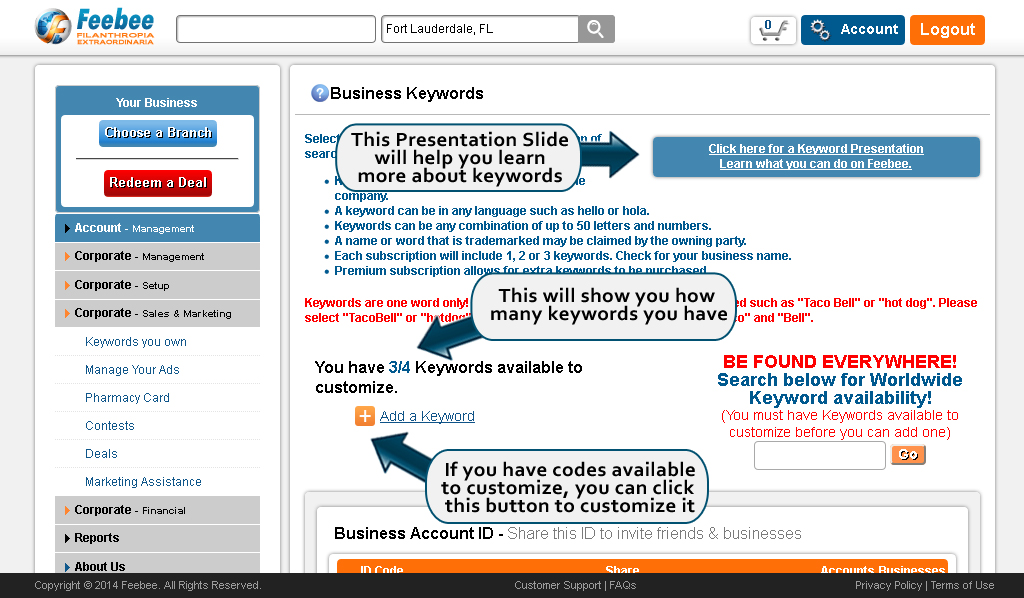
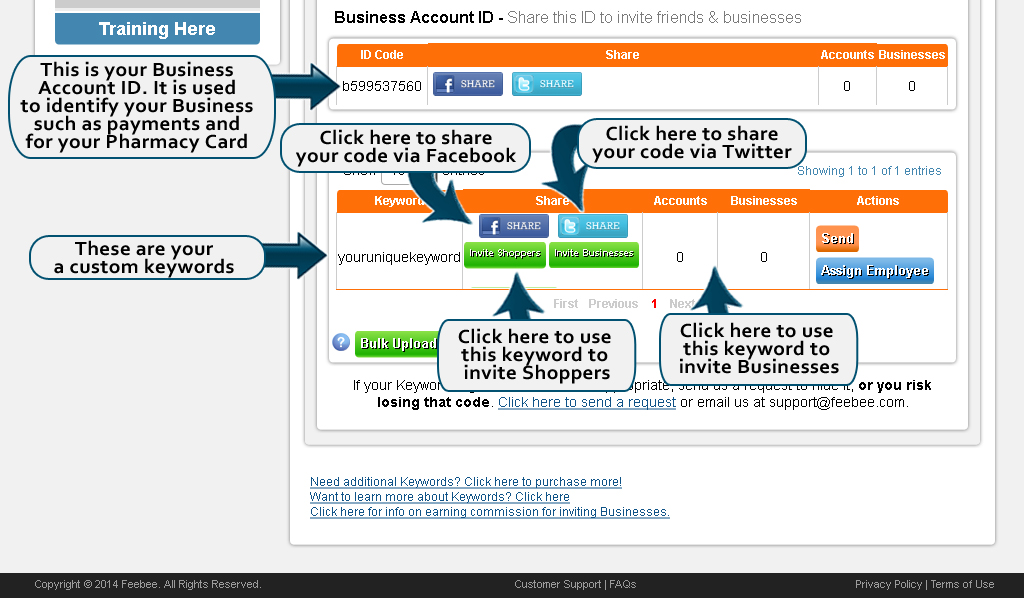
Your Keywords allow you to invite Shoppers and other Businesses to join Feebee. Doing so gives them the ads you set up, so you can market to them every time they are on Feebee. You have a Pharmacy ID Code that will be used on your Pharmacy Card. You also get 3 Keywords with our Premium Package, and if you need more you can purchase a Keyword Package on our Plans page.
To get to this page, go to your Account Panel and then click on the "Business - Marketing" tab on the left menu and click on the "Keywords" link.
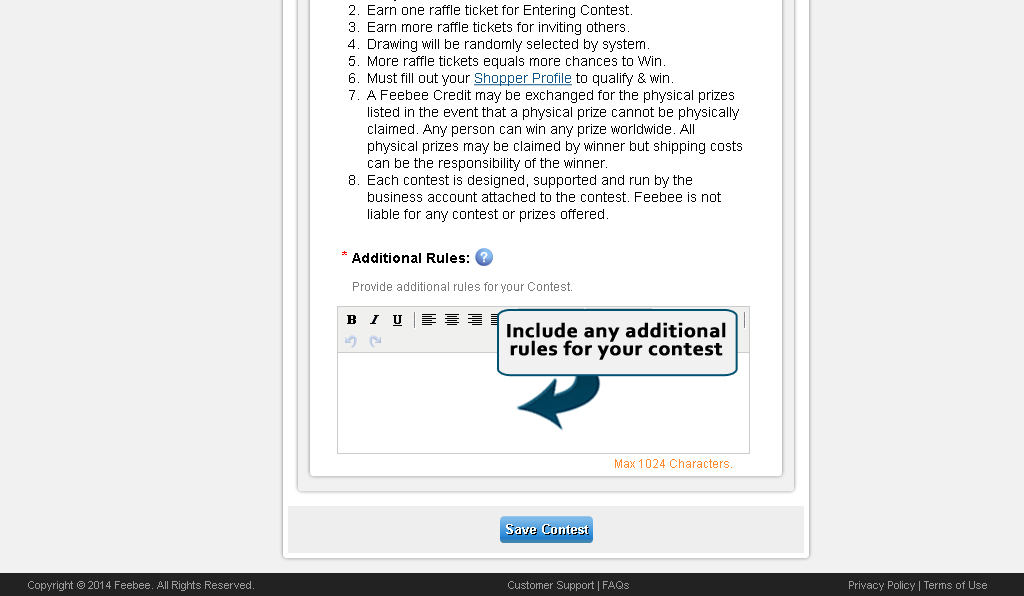
Contests Page
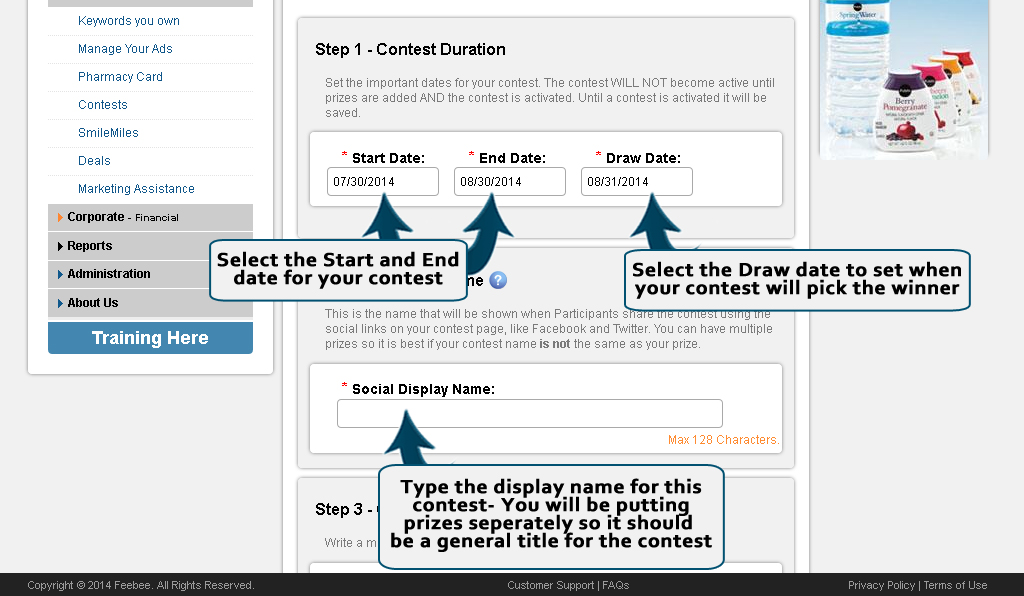
With Feebee's Contests, you can easily give inscentives for those who help your business grow. Contest prizes can be anything, so be creative.
Advertisement PresentationBack to Top
View this Advertisement Presentation
Learn how Feebee can help your Business.
Internet Advertisements Create, Control & Understand
Learn in this presentation how a customer can see the ads you create for the rest of their lives!
Why pay for advertising that competes with advertising?
Now: Your Ad competes with:
- Popups with blinking lights
- Banner Ads that glow
- Floating Ads blocking wording
- Trick Banners
- Expanding Ads that fill the page
How can a customer concentrate on your ad with all this noise?
On Feebee: Your Advertisement
- Is the Only Advertisement
- Easy to see and understand
- Links to your business
- Has reporting
- Features your Business & Deals
Let the customer focus on your business and not their business.
Four Feature Advertisement locations Create, Control, Change Instantly
Create your own advertisements instantly, change them when needed and save them all.
Activate the best advertisement for each day, holiday or marketing campaign.
Two advertisement locations will ALWAYS show when customers view your Business Page or your Deal Page.
Two invitation advertisements locations will ONLY show on the Welcome Page and Search Page of the customers or businesses YOU invite into Feebee that join with your Code .
If you DO NOT invite new accounts into Feebee then your invitation Advertisements will never be seen.
If you DO invite new accounts into Feebee, these accounts will see your Advertisements Forever! There is no extra cost to invite and capture millions of customers permanently!
Feebee Business Feature Advertisements
are really Great.
Business Page Feature Advertisement
- Only Ad on your Business Page
- Shoppers see your deals on left, business in middle and this ad on the right
- Use this advertisement to focus the shopper on what you want, from specials to upcoming events.
Deal Page Feature Advertisement
- Only Ad on your Deal Page
- This Ad shows when a customer selects one of your deals.
- Use this advertisement to explain why a shopper should buy deals from your great company!
Feebee Invitation Feature Advertisements
are Absolutely Spectacular!
Welcome Page Feature Advertisement
- This advertisement permanently shows on the Welcome Page of any shopper or business that joins Feebee using your invitation code.
- Anyone can join using your code at your home page, through one of your deals, or by entering one of your contests.
Search Page Feature Advertisement
- This advertisement permanently shows on the Search Page of any customer or business that joins Feebee using your invitation code.
- Shoppers join Feebee for free, invite them to using your code and keep them connected to your business forever!
Claudia joined BabiesRUs on Feebee in 2013
Claudia is mother of two, Celeste who is six and Tommy who is one.
She joined Feebee when entering a Babies RUs contest for a free gift card.
In early December Claudia opens her Feebee account to look for deals at local restaurants.
On her Welcome Page she sees a feature advertisement for the big Christmas sale on strollers and high chairs and is reminded she needs to get Tommy a new high chair.
They have a happy family and a great Christmas and Tommy enjoys his new chair.
Claudia and her family in 2020
In July Claudia opens Feebee to find a deal on an oil change.
On her Welcome Page she sees an advertisement for a Super Toy Sale at the BabiesRUs & ToysRUs Megastore
She is reminded that she still needs to get Tommy a toy or two for his upcoming birthday.
Tommy's birthday was a huge success and he loved his StarWars action figure set. Claudia saved money and ToysRUs got additional business.
Claudia and her family in 2030
Claudia goes to Feebee to find deals on movie tickets. She sees an ad for a great preschool learning tool at BabiesRUS on her Welcome Page.
She also sees a new crib that floats in the air from the BabiesRUs search page feature ad.
She calls Tom, now seventeen years old, to come pick her up on his hoverbike so they can go buy presents. They need them for Celeste's new one year old baby boy Estefan.
Claudia is happy to see such great ideas for her new grandchild and all are a result of one contest on feebee 17 years earlier.
Invitational Advertising is very Exciting!
This seventeen year example of how a business can connect with a customer is the basis of our marketing system.
This extended connection, that will keep going, benefits customers, businesses and Feebee alike.
We are partners that work together to make sure we all have success.
This long term productive relationship between businesses and consumers can be started by as little as a simple contest for a gift card.
Don't wait any longer. Get your advertisements up and start inviting everyone with your code.
No extra charge for millions of customers to connect with you forever.
The next story could be yours!
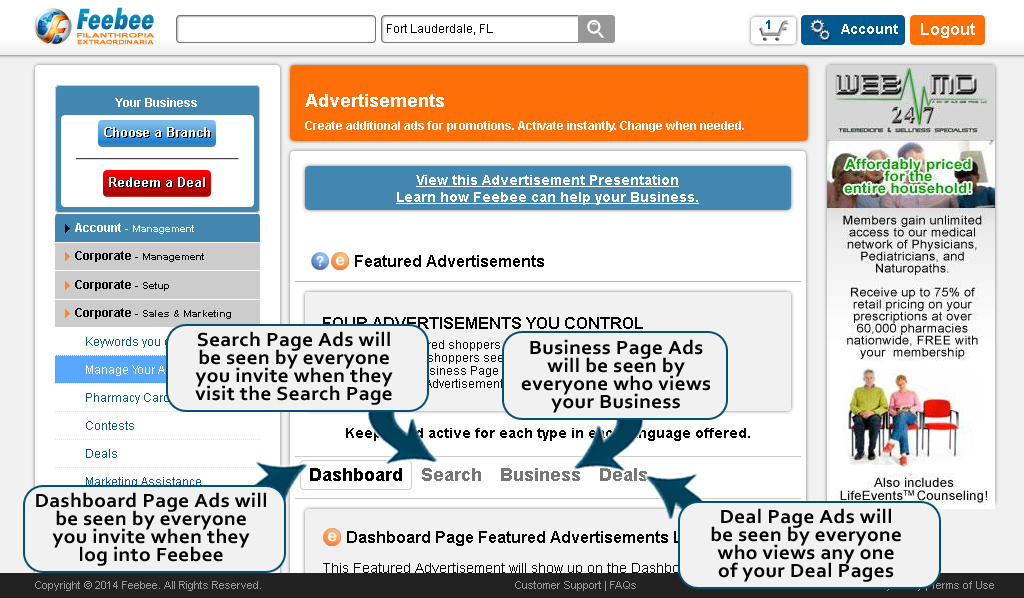
Create/Edit Your Ads Page
This page lists the Ads that you have created. You have a total of 4 Ad locations, so be sure that you have 1 Ad active for each location. The Locations are seperated into their own tables. You can tell if a Ad is active if it has the Green Checkmark in the Active column.
To get to this page, go to your Account Panel and then click on the "Business - Marketing" tab on the left menu and click on the "Create/Edit Your Ads" link.
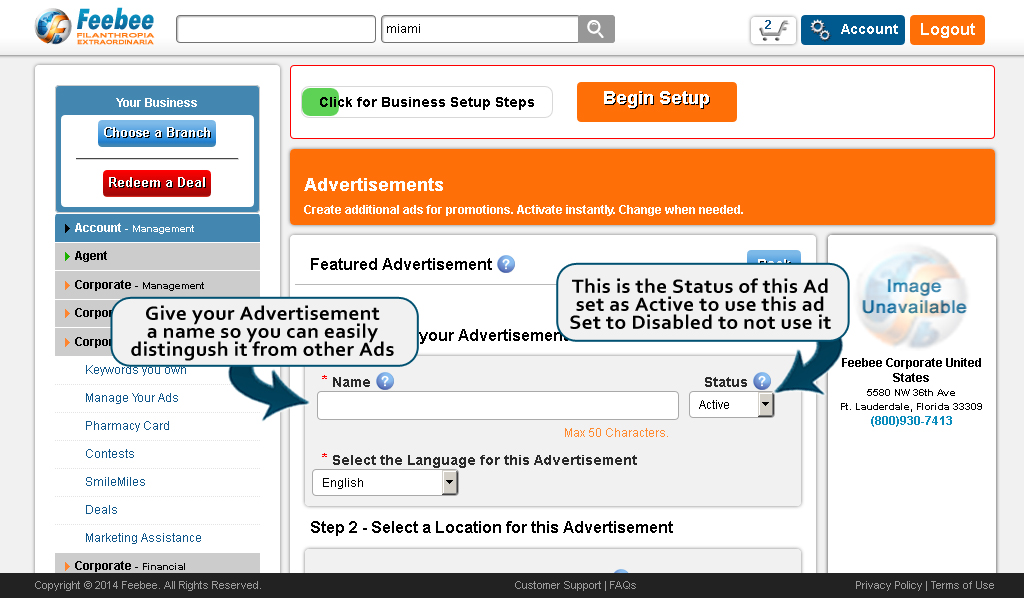
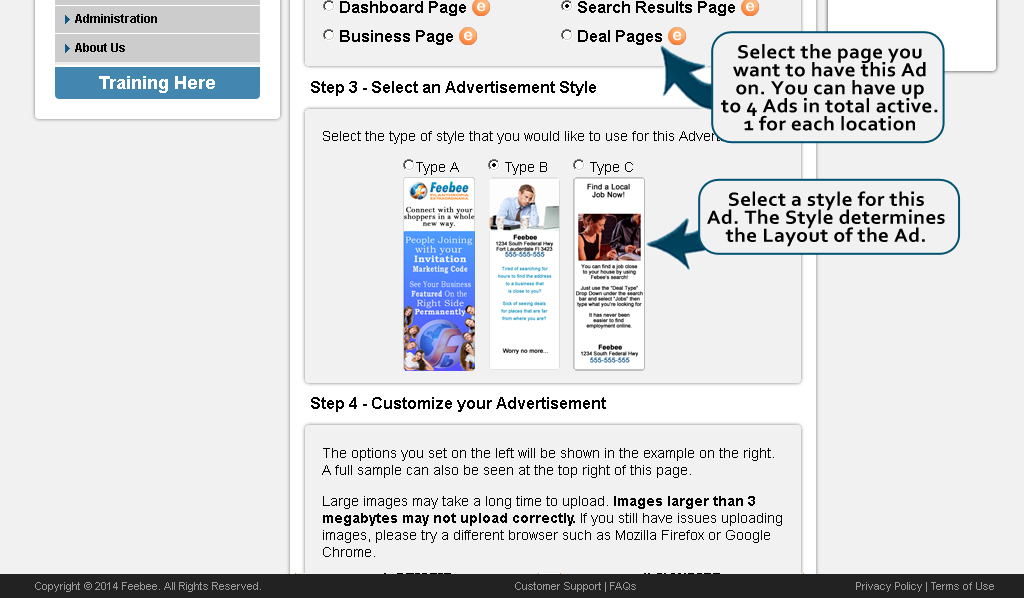
Create an Ad Page
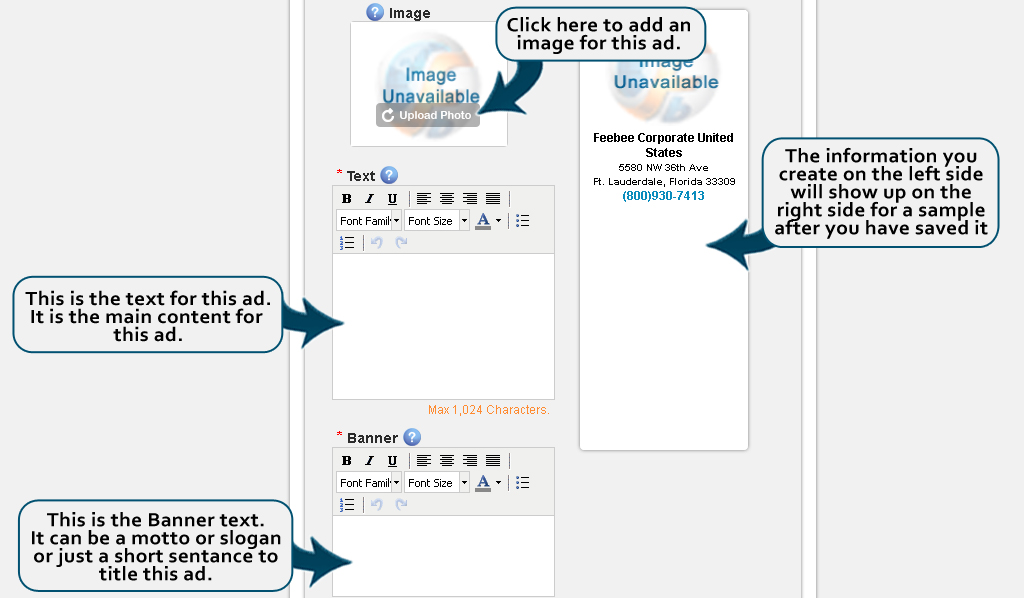
This page allows you to create an Ad. You can choose the type of Ad, as well as customize the ad how you want it. Be sure to set the Ad as Active if you'd like to use this ad.
To get to this page, go to your Account Panel and then click on the "Business - Marketing" tab on the left menu and click on the "Create/Edit Your Ads" link, then either click the edit button on an existing Ad, or click on the "Create an Advertisement" button.
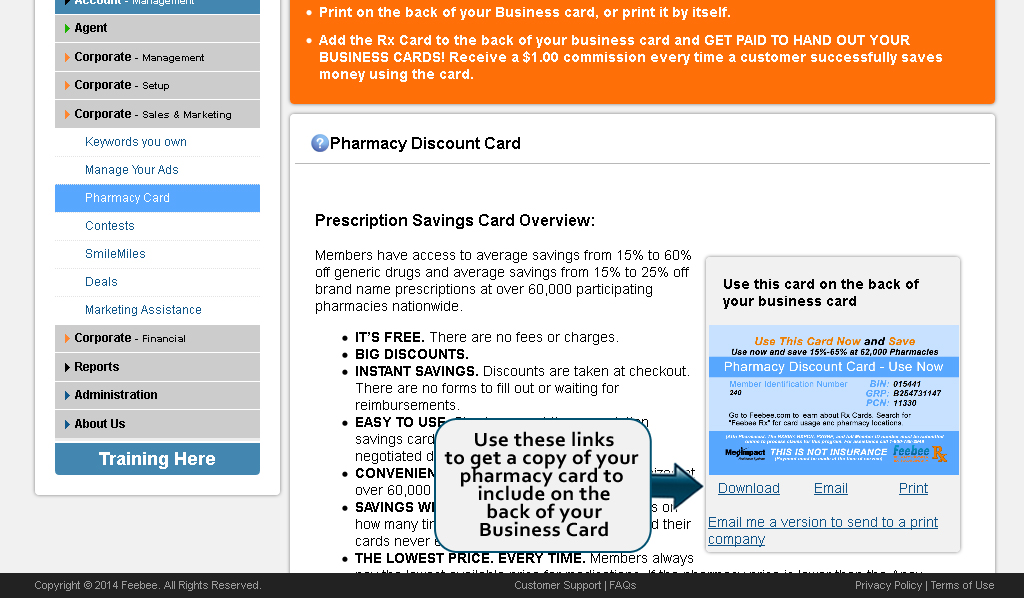
Pharmacy Card Page
This page will allow you to Customize your Pharmacy Card. You have the option of printing the card, or sending it to yourself via email. You can also select the type of card you want to let your invited members use. They can either get the card with your Branding or without.
To get to this page, go to your Account Panel and then click on the "Business - Marketing" tab on the left menu and click on the "Pharmacy Card" link.
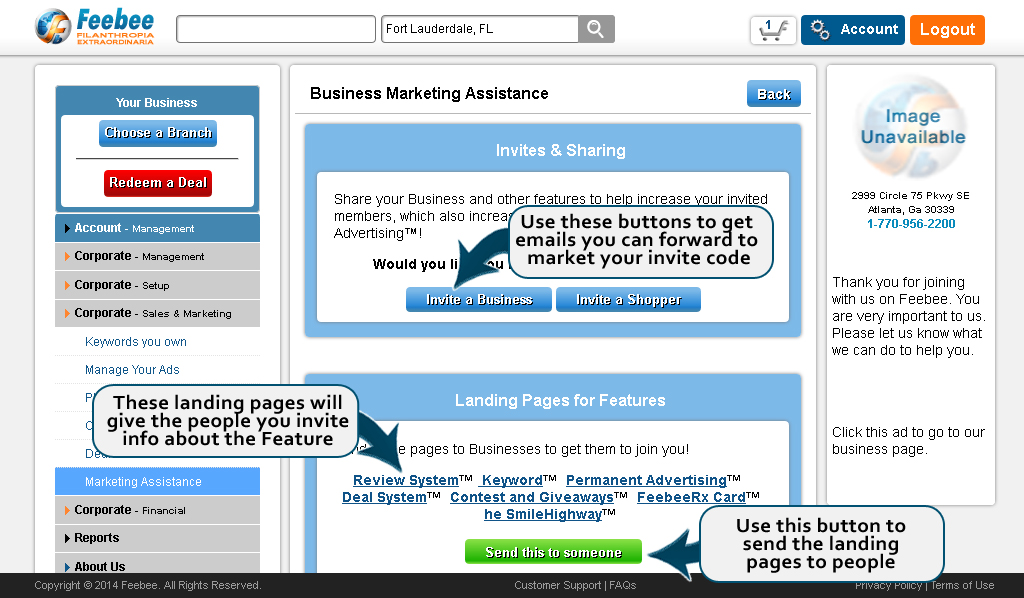
Marketing Tools Page
This page will help you market your invite code. It will provide you with links to our Feebee Marketing site which has email templates and printable documents to help you invite Businesses for Commissions
To get to this page, go to your Account Panel and then click on the "Business - Marketing" tab on the left menu and click on the "Marketing Tools" link.
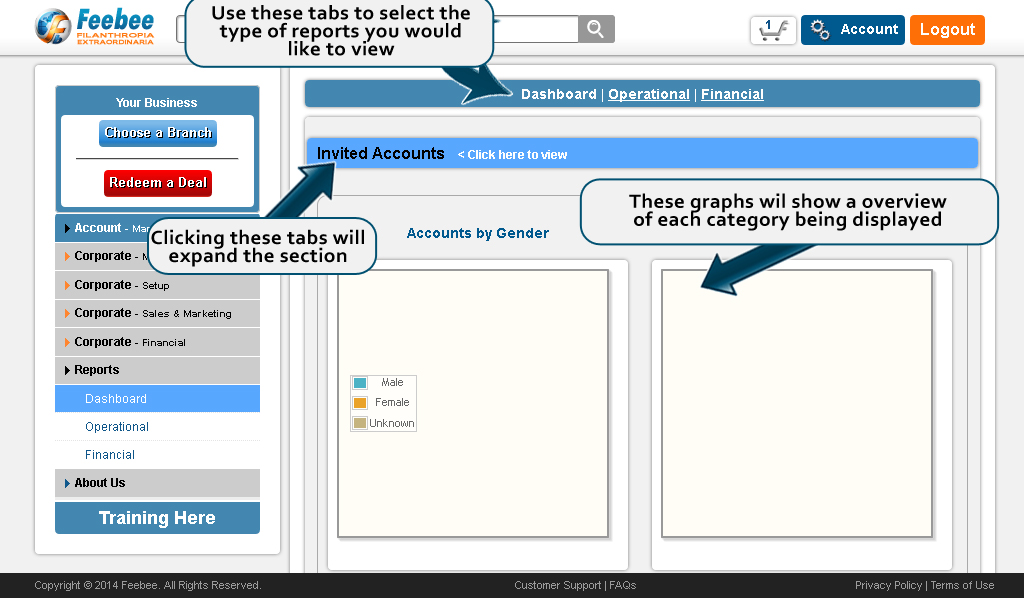
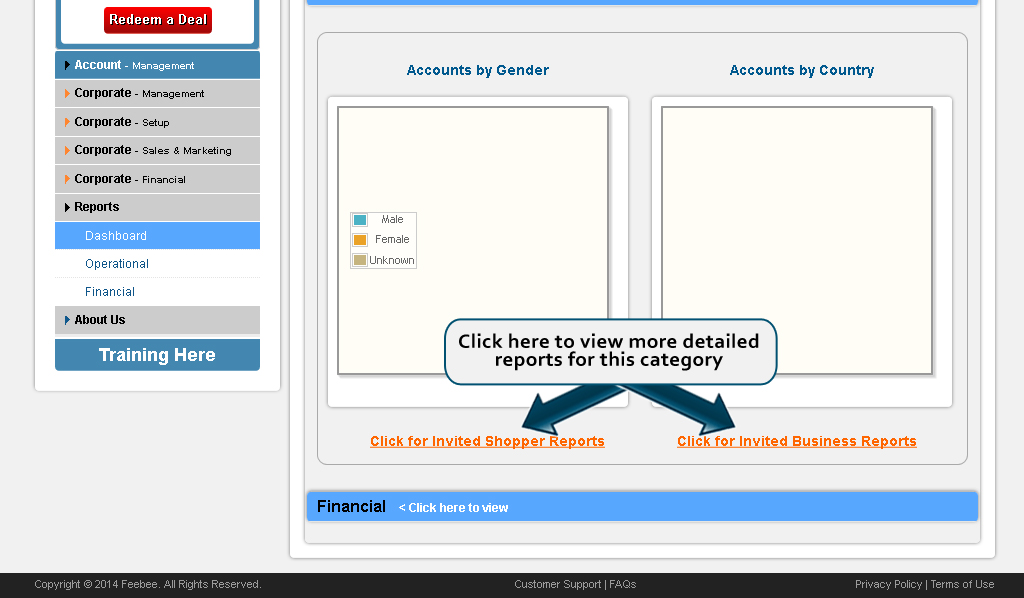
View Reports Page
The reports page gives you a breakdown of all of the important information regarding your Business. It currently has 4 options for reporting:
- Deal Sales - A list of all of the Deals you have sold.
- Referrals - A breakdown of all of the members you have invited to Feebee.
- Commissions - A breakdown of who you are earning Commissions off of.
- Balance - Simular to the Agent Account Balance page, with a bit more detail.
To get to this page, go to your Account Panel and then click on the "Business - Accounts" tab on the left menu and click on the "View Reports" link.
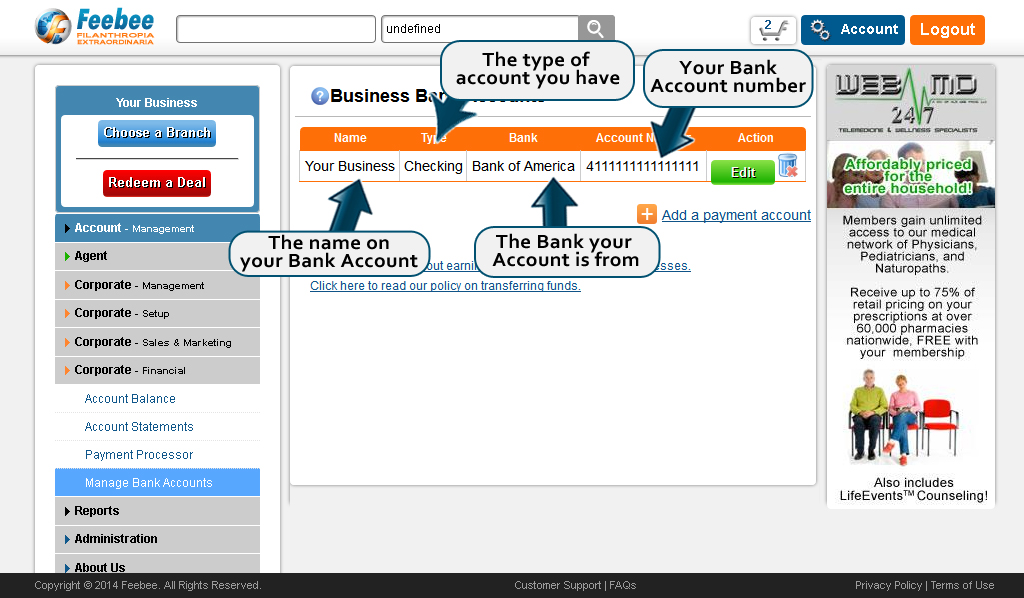
Bank Account Page
Your Bank Accounts are used when you want to transfer money from your Feebee Business Account to your Bank.
To get to this page, go to your Account Panel and then click on the "Business - Accounts" tab on the left menu and click on the "Add/Edit Bank Accounts" link.
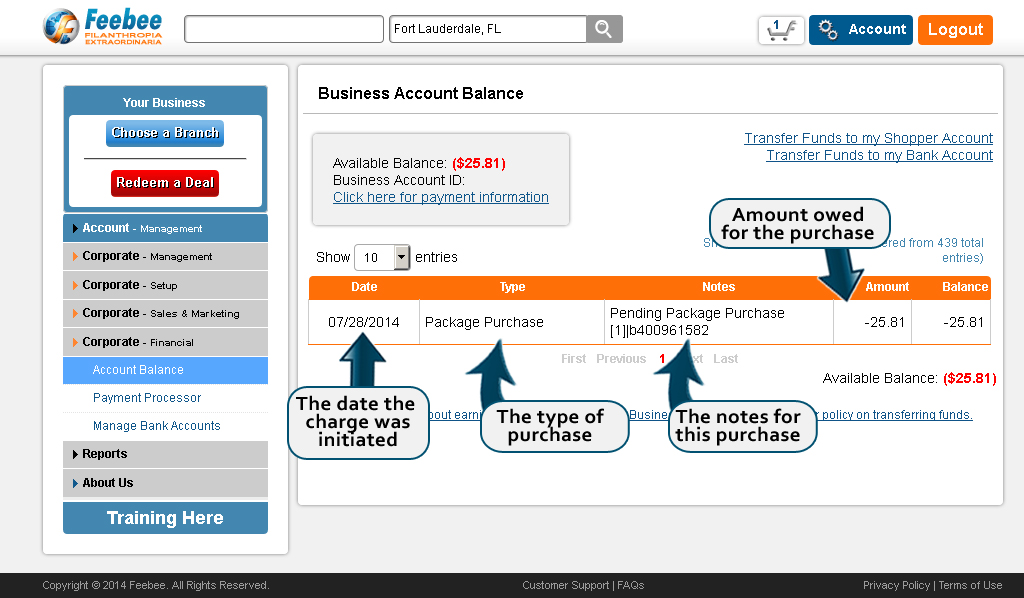
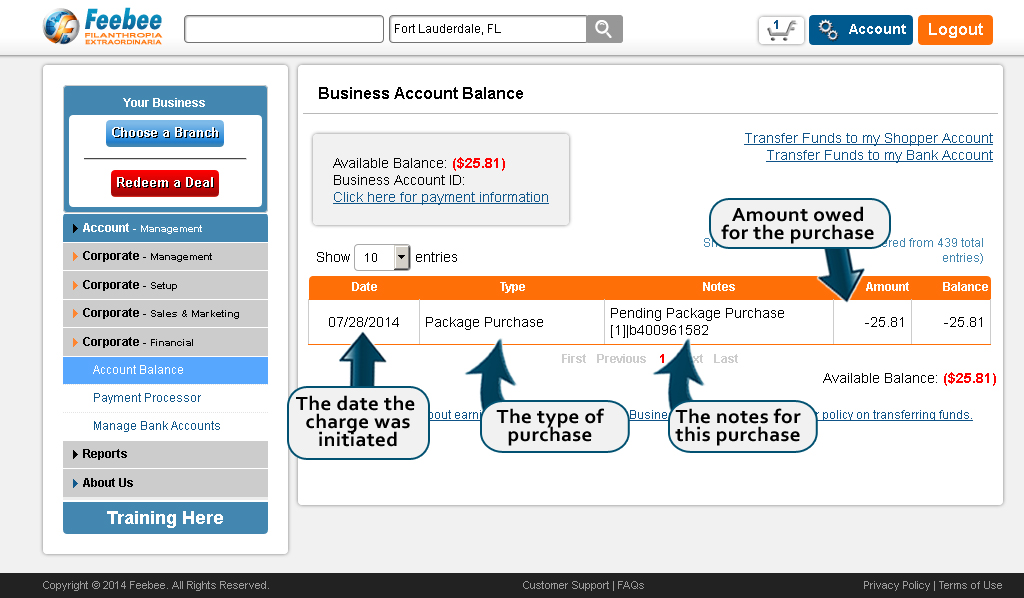
Account Balance Page
Your Business Account Balance Page will list all of the transactions on your account. It will give you an itemized breakdown of money spend or earned on your Business account.
To get to this page, go to your Account Panel and then click on the "Business - Accounts" tab on the left menu and click on the "View Account Balance" link.
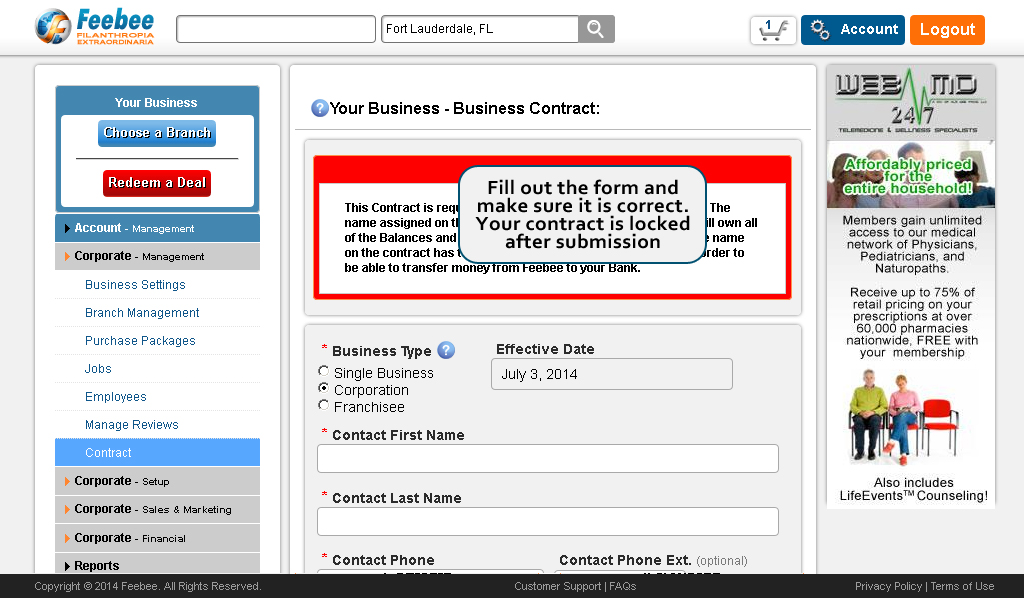
Business Ownership Form Page
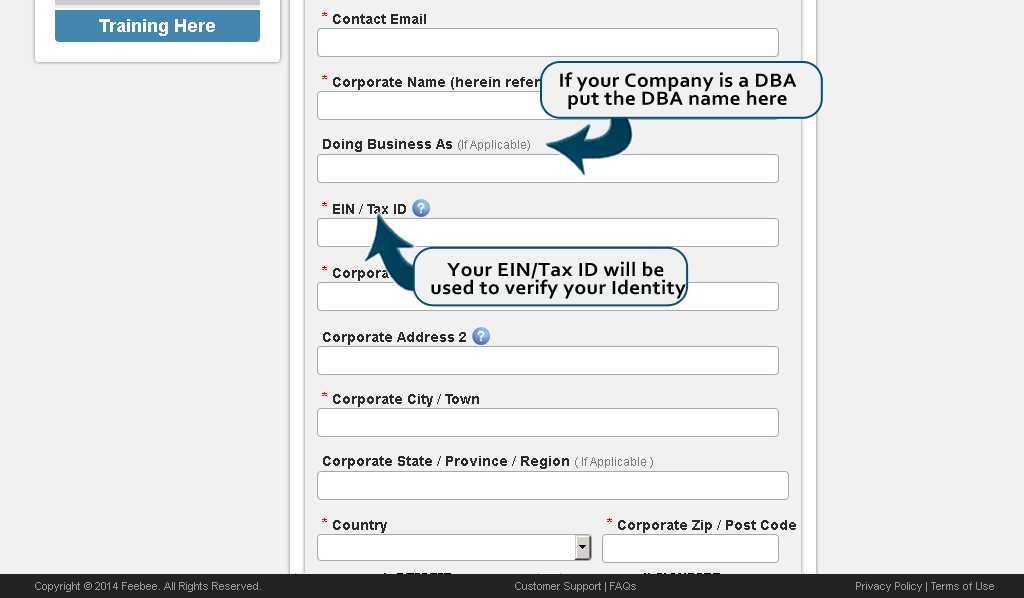
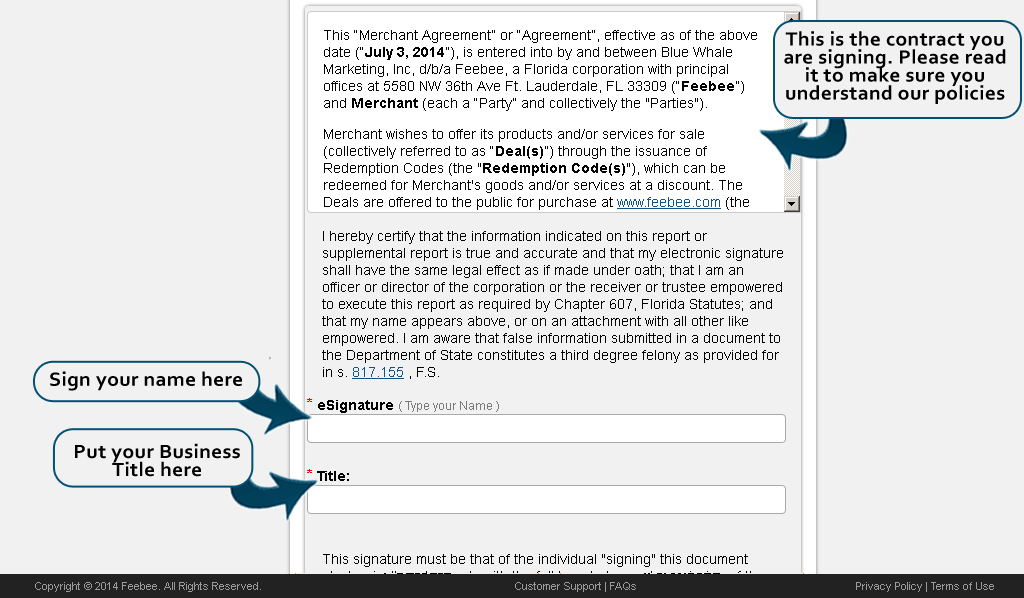
This page is all the legal information that allows you to use our merchant services. It needs to be filled out completely and you must double check that everything is correct. Once you submit the Contract everything will be locked in place to keep your account secure.
To get to this page, go to your Account Panel and then click on the "Business - Upgrade" tab on the left menu and click on the "Feebee Contract" link.
Purchase Packages Page
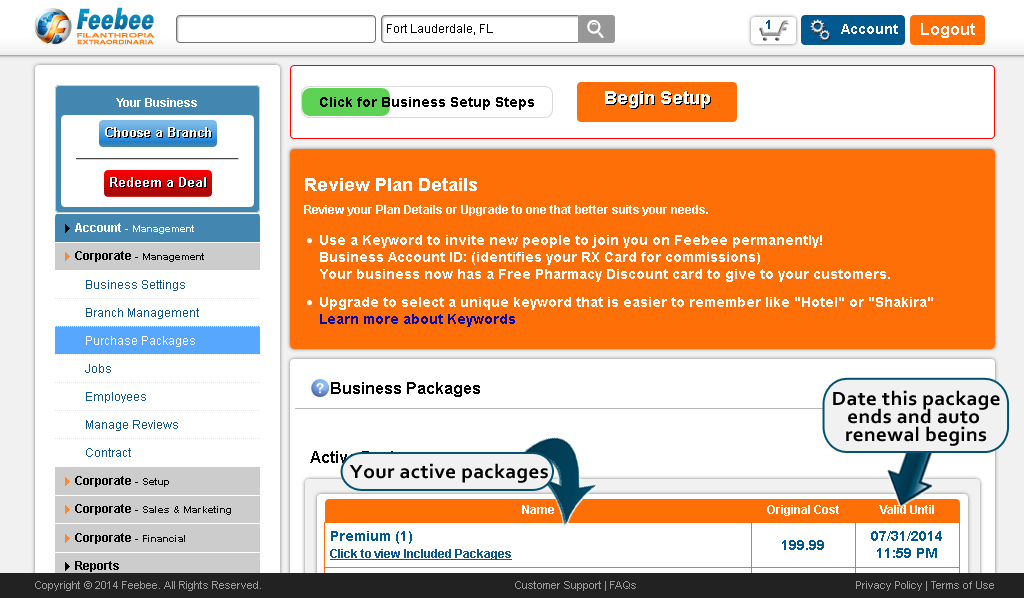
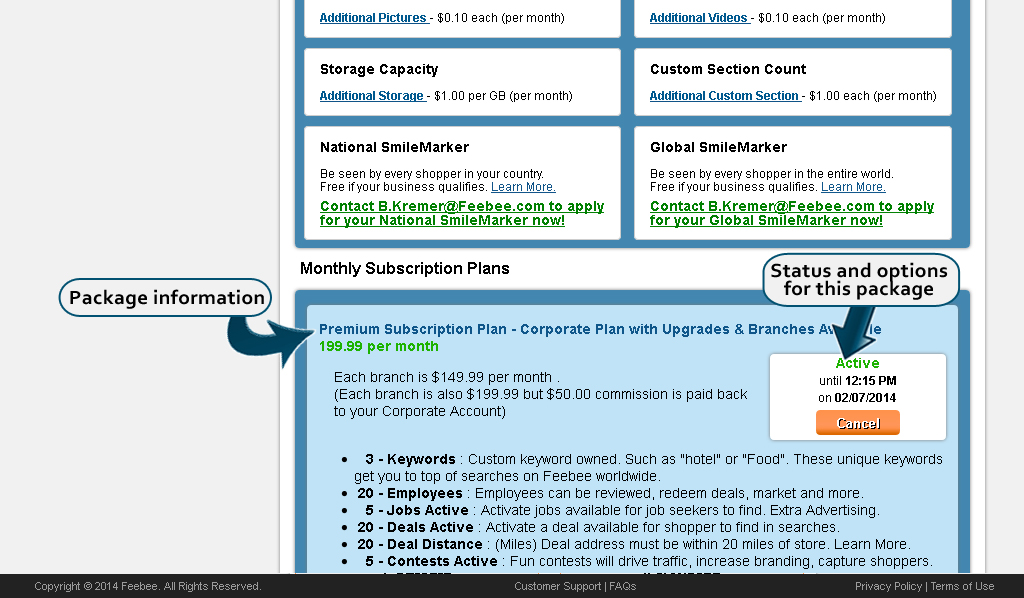
Packages allow you to add features to your Account. Select the package you want to purchase. You can have multiple packages active so you can use a combination of packages to get the results you need.
To get to this page, go to your Account Panel and then click on the "Business - Upgrade" tab on the left menu and click on the "Purchase Packages" link.
Package Payment History Page
This page will have a itemized list of your previous package subscriptions.
To get to this page, go to your Account Panel and then click on the "Business - Upgrade" tab on the left menu and click on the "Package Payment History" link.
X
Sponsors are Businesses and Celebrities who invite others to join Feebee. In doing so they control which ads are displayed on your home page.
Sponsors also receive a monthly 30% commission from Business Subscription Plans.